Margin tells you how much profit a product can generate. Performance tells you how well it already converts. Used together, they give you a two-dimensional view of your catalog that a single label cannot provide. This article shows you how to map both signals to custom labels in WP Product Feed Manager and use the combination to build a sharper campaign structure in Google Ads.
Prerequisites
Before following this article, complete both of the following:
- Set Up Custom Labels for Margin-Based Campaign Splitting, adds margin_band (Low / Medium / High) to your products and maps it to [custom_label_0]
- Using Performance Metrics to Optimize Google Shopping Campaigns — explains how WP Product Feed Manager calculates performance tiers (high / mid / low) from your WooCommerce order data
Why Combining Both Labels Matters
Margin and performance measure different things. A product can be a high performer with a low margin; it sells well but barely covers its costs. A high-margin product with low performance has room to grow but needs more budget or better creative to move. Splitting on one signal alone misses this nuance.
By using [custom_label_0] for margin and [custom_label_1] for performance, you give Google Ads enough information to let you build campaigns around the combinations that actually drive profit.
Step 1: Enable Performance Prioritizing in Your Feed
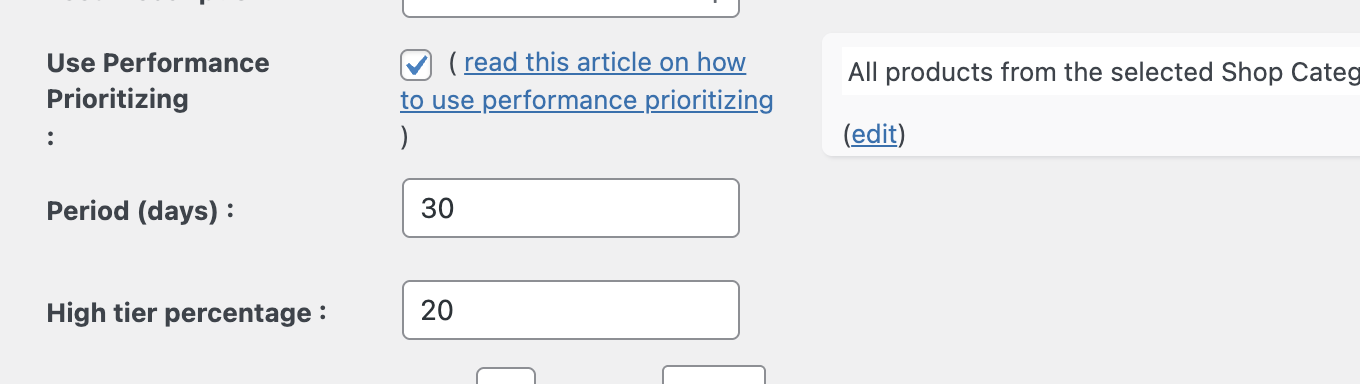
Before the performance source is available in attribute mapping, you need to enable Performance Prioritizing in your feed settings.
- Go to WP Product Feed Manager in your WordPress dashboard.
- Open the feed you send to Google.
- Locate the option “Use Performance Prioritizing” and enable the checkbox.
- Set the Period (days), which controls how many days of WooCommerce order history are used. 30 days is a good starting point for most stores. Use a longer period if your store has low order volume.
- Set the High-tier percentage; this defines what share of your best-performing products receives the high label. For example, setting 20% means the top 20% of products by performance are classified as high.
- Save the feed.
Once Performance Prioritizing is enabled, the “Performance (high/mid/low)" source becomes available in your attribute mapping.
Step 2: Map Performance Tier to custom_label_1
You already have product_margin mapped to [custom_label_0]. Now add the performance tier to [custom_label_1].
- Go to the “Feed Fields” tab in the same feed.
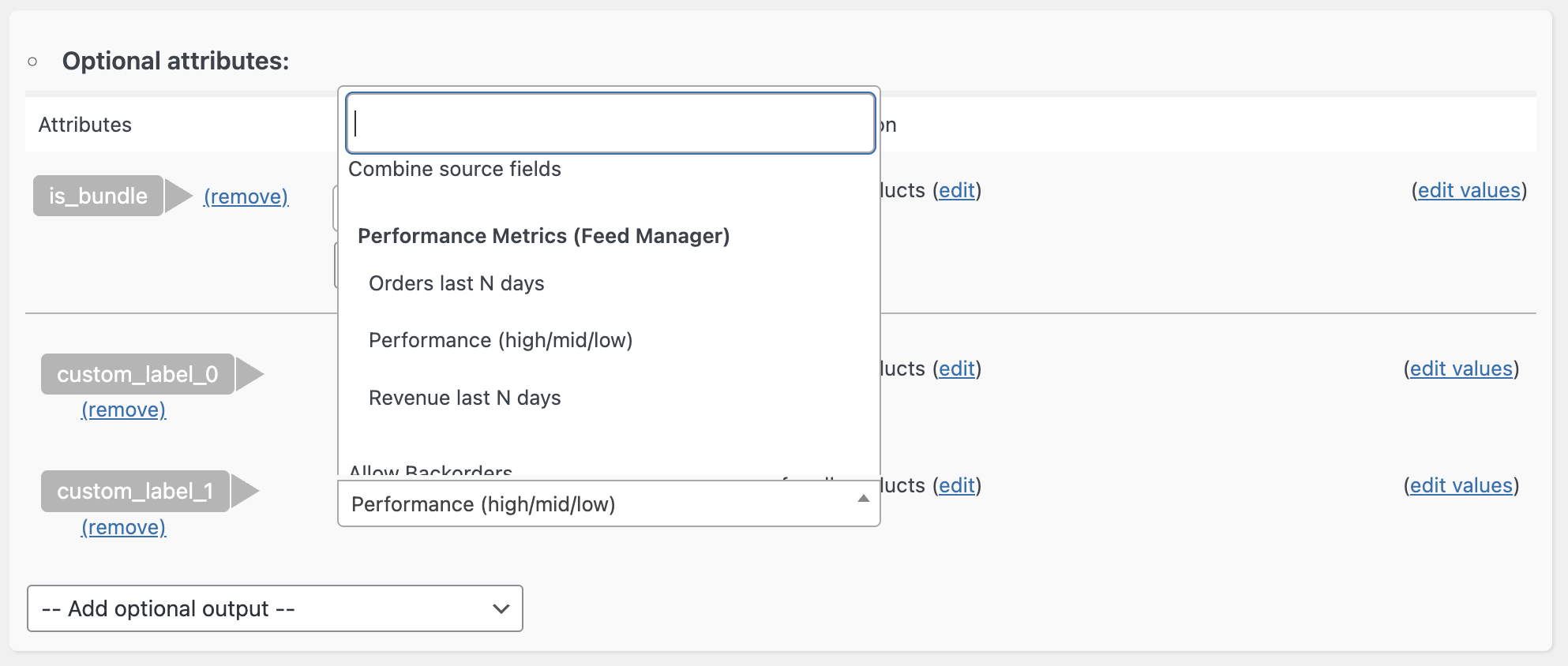
- Find the row for [custom_label_1].
- Click the “Source” dropdown in that row.
- Select “Performance (high/mid/low)” as the source type. WP Product Feed Manager will automatically output high, mid, or low based on each product’s sales history.
- Save the feed and regenerate it.
To verify, open the feed URL and check that contains high, mid, or low for your products.
Note: Performance values are recalculated every time the feed is generated. Products can move between tiers as sales data changes.
Step 3: Understand the Combination Matrix
With both labels in place, each product now belongs to one of nine possible combinations:
| High performance | Mid performance | Low performance | |
|---|---|---|---|
| High margin | Scale aggressively | Investigate and grow | Improve or pause |
| Medium margin | Scale carefully | Standard bidding | Lower bids |
| Low margin | Monitor closely | Reduce spend | Exclude or cut |
The top-left cell, high margin, high performance, represents your most valuable products. These are the ones worth the most investment. The bottom-right, low-margin, low-performance are candidates for exclusion.
Step 4: Structure Your PMax Campaigns by Combination

In Performance Max, you cannot set bids per listing group. Listing groups only control which products are included or excluded — bidding happens at the campaign level via Target ROAS or Target CPA. To apply different budgets and goals per combination, you need separate campaigns.
Recommended structure:
Create at least two separate PMax campaigns:
- Campaign: Top Products, include only high margin + high performance products
- Campaign: Everything else, including all remaining products, or split further as your data grows
To assign products to the right campaign, use listing group subdivisions inside each campaign:
- Go to “Campaigns” in Google Ads and open your Performance Max campaign.
- Select “Asset groups”
- Click “Listing groups” in the page menu.
- Click the pencil icon next to “All products”.
- Choose “Subdivide by” and select “Custom label 0” (margin).
- Select High and save.
- Click the pencil icon on the new “High” subdivision.
- Choose “Subdivide by” again and select “Custom label 1” (performance).
- Select high and save.
This listing group now contains only products where both the margin label is High, and the performance label is High. Set the campaign-level budget and Target ROAS to reflect the value of this segment.
Note: Listing groups in Performance Max use “Subdivide by” to filter products — there is no “add a filter” button. The filter option elsewhere in Google Ads is for reporting, not for product selection.
For low margin + low performance products, the most effective action is to exclude them from your feed entirely using Product Filters in WP Product Feed Manager, rather than trying to control spend for them in Google Ads.
You do not need to set up all nine combinations as separate campaigns immediately. Start with your top segment and exclude your worst performers. Add more campaigns as your data matures.
Step 5: Set Campaign Budgets and ROAS Targets per Segment
Since bidding in PMax is set at the campaign level, apply the matrix logic from Step 2 to your campaign settings:
| Combination | Recommended approach |
|---|---|
| High margin + High performance | Separate campaign, highest budget, ROAS target with room to spend |
| High margin + Low performance | Include in the main campaign, test the new creative to improve conversion |
| Low margin + High performance | Include in main campaign, monitor for margin erosion |
| Low margin + Low performance | Exclude from feed via Product Filters in WP Product Feed Manager |
For mid-tier combinations, use a single catch-all campaign with standard ROAS targets and adjust based on results over 30 days.
Step 5: Review Regularly
Performance tiers update every time your feed is regenerated. A product that was a low performer last month may have moved to mid or high after a promotion or seasonal shift.
Check your campaign segmentation at least once a month and adjust asset group assignments when products have clearly moved tiers.
What to Do Next
Map [custom_label_1] to the performance source in WP Product Feed Manager and regenerate your feed. Then update your Google Ads asset groups to filter on both labels. Begin with the high-margin + high-performance segment and the low-margin + low-performance segment; these two deliver the clearest immediate impact.