Automating Product Feed Updates
Ensuring your product feeds are consistently up-to-date with the latest inventory changes is crucial for maintaining accurate online listings. Our WooCommerce Product Feed Manager facilitates automatic feed updates, relieving you from the need to regenerate feeds after every product change manually. Here’s a straightforward guide to setting up automatic feed updates:
Understanding Feed Statuses:
- Within the Feed List, each feed is assigned a status that indicates its update mechanism. A status of ‘Ready (manual)’ means updates are contingent upon manual intervention. Conversely, ‘Ready (auto)’ denotes that the feed is set to update automatically at set intervals.
Enabling Automatic Updates:
- To activate automatic updates for a feed, locate the ‘auto-on’ link in the feed’s Actions column and click it. If you need to revert to manual updates, the ‘auto-off’ link will disable the automatic function.
Customizing the Update Schedule:
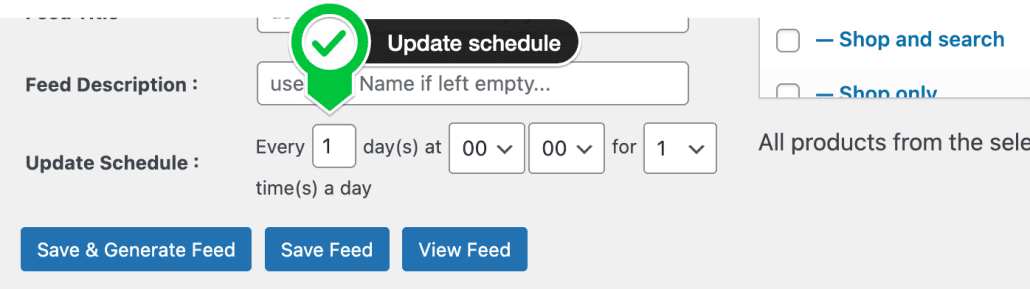
- In the feed editor, you’ll find the schedule settings at the top. The default setting updates the feed daily at midnight. This interval can be tailored to fit your specific needs, whether it’s weekly at a certain time or multiple times throughout the day.
Recommended Practices:
- Updating the feed every 12 or 6 hours strikes a good balance between currency and server load for most stores. It’s important to consider your server’s capacity when setting update frequencies. For shared hosting environments, less frequent updates are advisable to avoid overloading the server. Those with VPS or dedicated servers may opt for more frequent updates without significant performance concerns.
Leveraging Server Cron Jobs for Precision:
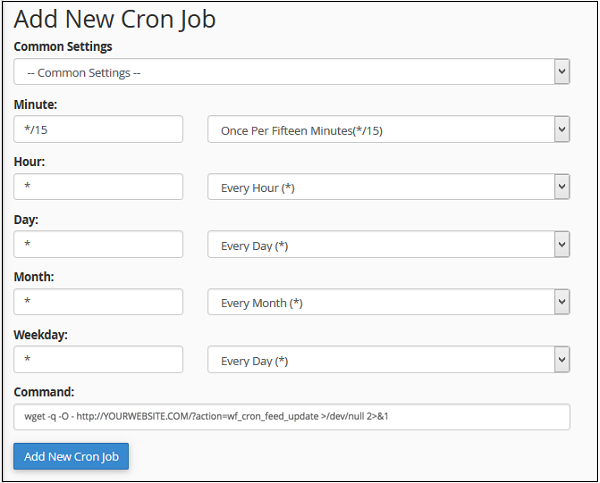
- WordPress’s built-in WP-Cron relies on on-site visits to trigger scheduled tasks, which may not always guarantee timely execution. For more precise control over your feed update schedule, consider setting up a server-side cron job through your hosting control panel. This ensures that your feed updates occur exactly as scheduled, regardless of site traffic.
If Scheduled Update Silently Fails
Setting up a server-side cron job, or even relying on WP-Cron, doesn’t fully close the gap. A second layer can cause scheduled feed updates to stall even when the schedule fires correctly, and it produces no error message anywhere in WordPress.
The cause: cron jobs run under a different PHP memory limit
A scheduled feed update, whether triggered by WP-Cron or a server-side cron job, doesn’t run inside a normal WordPress page request. It runs as a separate PHP process managed by your hosting environment, and that process is often configured with a much lower memory limit than the one used for your site’s regular pages.
This is a common hosting configuration, not a fault in WP Product Feed Manager. Generating a feed is memory-intensive, especially for larger catalogs, which is exactly the kind of task that runs into a restrictive cron memory limit.
Note: Support tickets describing this issue have found the cron process running with as little as 1 MB of available memory, against a much higher limit on normal site requests. That gap is large enough to cap or fail a feed generation outright, with nothing written to a WordPress log.
How to recognize this is happening
Check for this specific pattern:
- The Feed List shows Ready (auto) for the feed.
- The schedule in the feed editor looks correct.
- No error appears in WordPress, in admin notices, or in your plugin logs.
- The feed file’s last-updated timestamp is days or weeks old.
- Manually regenerating the feed from the Feed List produces a correct, current file immediately.
That last point is the tell. If manual regeneration also fails or produces errors, the cause is something else, not this cron memory limit.
How to fix it
- Confirm the pattern above, in particular that a manual regeneration succeeds while the schedule doesn’t.
- If you haven’t already, set up a server-side cron job as described in Leveraging Server Cron Jobs for Precision above.
- Contact your host and ask specifically what PHP memory limit is assigned to cron jobs, separately from the memory limit assigned to normal site requests. This is a hosting control panel setting, not something you configure in wp-config.php.
- Ask your host to raise the memory limit for the cron job running your feed update, or for cron jobs generally if they don’t offer per-job configuration.
- For very large catalogs, consider a less frequent update schedule (see Recommended Practices above) to reduce how much memory the scheduled run needs at once.
Tip: Increasing WP_MEMORY_LIMIT in wp-config.php raises the memory available to your site’s normal requests, not to your host’s cron process. If a scheduled update is stalling for this reason, that change alone won’t fix it. The memory limit that matters here lives in your hosting control panel’s cron configuration.
By implementing these settings, your product feeds will automatically reflect the latest changes, from new product additions to stock level adjustments, ensuring your online presence is always accurate and up-to-date.