Google pricing attribute setup
Accurate pricing is important for a successful presence on Google Merchant Center (GMC). This guide focuses on the correct setup of the [price] and [sale_price] attributes in WooCommerce Product Feed Manager, ensuring compliance with GMC’s requirements and avoiding common pricing errors.
The [price] Attribute: Essential Requirements
The price attribute is one of the required attributes for a Google product feed so you will find it directly in the required attributes in the feed editor.
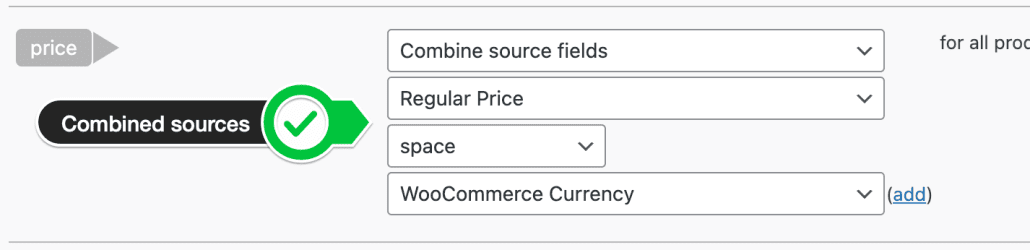
- Format: Ensure the price follows the format of a number followed by the currency, adhering to the ISO 4217 standard (e.g., “15.00 USD”). The price attribute in the feed builder is set up with a combined field (Regular price + WooCommerce Currency) so it shows correctly out of the box.
- Currency Consistency: The price in your feed must match the price on your landing and checkout pages in both amount and currency.
- Up-to-date Information: Regularly update your feed to reflect current prices.
- Decimal Precision: Limit decimal places to two digits. Google will round off any additional digits.
The [sale_price] Attribute: Optional but important.
You will find the [sale_price] attribute in the Optional Attributes section. Click the “add optional output” dropdown to find the sale price attribute.
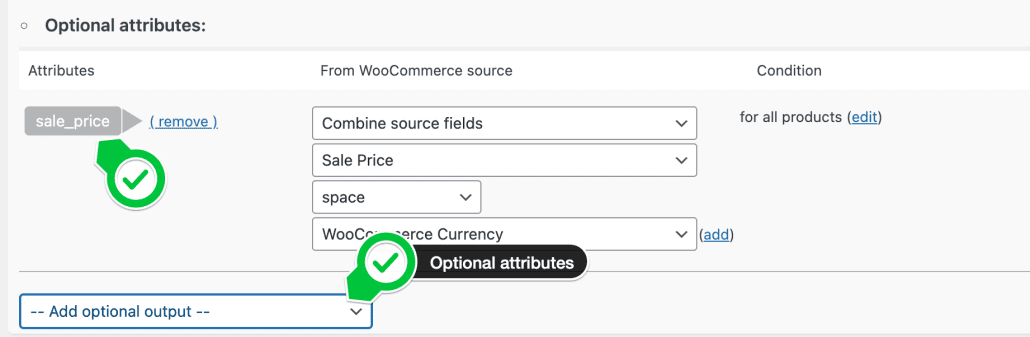
- Sale Price Submission: Use [sale_price] to indicate a discounted price, ensuring it’s lower than the regular price.
- Displaying Prices: Your landing pages should display both the regular and sale prices, with the sale price prominently shown during the promotional period.
- Consistency: Ensure the sale price in your feed matches your website’s pricing.
- Sale Duration: Use [sale_price_effective_date] to specify the sale’s timeframe, helping Google recognize the promotion period.
- Strikethrough Pricing: If applicable, submit both prices to Google to highlight the discount.
Resolving Common Pricing Errors
- Schedule Regular Updates: Increase feed update frequency for dynamic pricing or stock changes to maintain accuracy.
- Include Regular and Sale Prices: Always submit both the regular ([price]) and sale ([sale_price]) prices for clarity and compliance.
- Handle Variants Correctly: For products with price-varied variants, include the specific variant’s link in your feed to avoid pricing mismatches.
By following these guidelines and requirements for setting up [price] and [sale_price] attributes, you can ensure your product feeds are accurate, compliant, and optimized for Google Shopping, enhancing your visibility and sales potential on the platform.