This guide explains how to add UTM tracking parameters to the product URLs in your feed. Adding a campaign URL lets Google Analytics identify which feed sent each visitor, so you can measure traffic and conversions per feed.
Before You Begin
You need an active product feed in WP Product Feed Manager. If you have not created a feed yet, set one up first under WP Product Feed Manager > Feeds > Add New Feed.
Step 1: Open Your Feed for Editing
- Go to WP Product Feed Manager > Feeds.
- Find the feed you want to track and click Edit.
Step 2: Enable Google Analytics Tracking
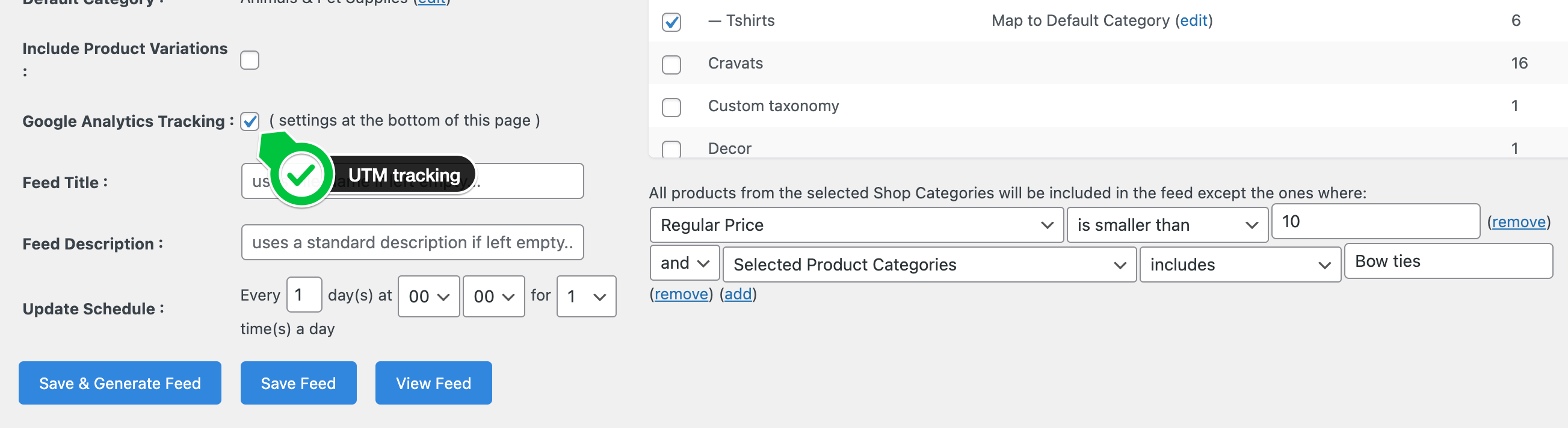
- Check the Google Analytics Tracking checkbox in the feed settings
- Scroll down to the Google Analytics Tracking section in the feed editor.
The Google Campaign URL Builder appears directly below the feed editor
Step 3: Fill In Your UTM Parameters
The Google Campaign URL Builder has five fields. You do not need to fill all of them. At minimum, fill in Campaign Source, Campaign Medium, and Campaign Name to get meaningful data in your reports.
| Field | What it tracks | Example value |
|---|---|---|
| Campaign Source | Where the traffic comes from | google_shopping |
| Campaign Medium | How the visitor arrived | shopping |
| Campaign Name | Which feed sent the traffic | electronics_feed |
| Campaign Term | Optional keyword or product attribute | [product-sku] |
| Campaign Content | Optional content variant | [product-brand] |
Tip: Use consistent naming across all your feeds. UTM values are case-sensitive.
google_shoppingandGoogle_Shoppingappear as two separate sources in Google Analytics reports.

Step 4: Save the Feed
- Click Save Feed.
WP Product Feed Manager appends the UTM parameters to every product URL in the feed from this point forward.
Using Shortcodes for Dynamic UTM Values
Instead of entering the same static value in every UTM field, you can use shortcodes to pull product data into your UTM parameters. WP Product Feed Manager supports these natively. No custom code or additional plugins are required.
Type the shortcode directly into any UTM field in the Google Campaign URL Builder.
Available Shortcodes
| Shortcode | What it inserts |
|---|---|
[product-title] | The product name |
[product-id] | The product post ID |
[product-sku] | The product SKU |
[product-group-id] | The product group ID attribute |
[product-brand] | The brand attribute |
Example
To track each product by SKU in Google Analytics, enter [product-sku] in the Campaign Term field. When the feed is generated, WP Product Feed Manager replaces the shortcode with the actual SKU for each product.
A product with SKU SHOE-001 in a feed with these settings:
- Campaign Source:
google_shopping - Campaign Medium:
shopping - Campaign Name:
footwear_feed - Campaign Term:
[product-sku]
Generates this URL: https://yoursite.com/product?utm_source=google_shopping&utm_medium=shopping&utm_campaign=footwear_feed&utm_term=SHOE-001
Note: It can take up to 48 hours for UTM data to appear in Google Analytics reports. If you do not see data after 48 hours, verify that the feed is live and receiving clicks.
Video tutorial
Did you find this article helpful? If you have followed the steps but still need assistance or have additional questions, we’re here to help. Please don’t hesitate to open a support ticket.