Excluding Out-of-Stock Products from Your Product Feed
Keeping your product feed up-to-date is crucial, especially when it comes to stock availability. Here’s how you can manage out-of-stock products in your feed without needing to remove them entirely:
Updating ‘Availability’ Status:
- Temporary Out-of-Stock: If a product is temporarily unavailable, you can simply update its ‘availability’ status to ‘out of stock’ within the feed. This keeps the product in the feed but informs platforms like Google Shopping that it’s currently not available. Once the item is back in stock, change the ‘availability’ status to ‘in stock’ to resume its visibility.
- Benefits: This method is beneficial, and recommended, as it avoids the need for the product to be reprocessed by the shopping platform once it’s available again, potentially speeding up the time it takes for your product to be visible to customers.
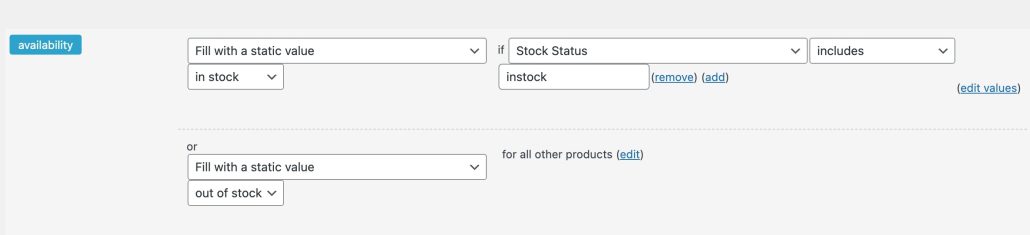
Excluding Products Completely:
- Using Advanced Product Filter: If you prefer not to display out-of-stock items at all in your feed, you can use the advanced product filter feature within your feed manager. This allows you to set conditions that automatically exclude out-of-stock products from your feed.
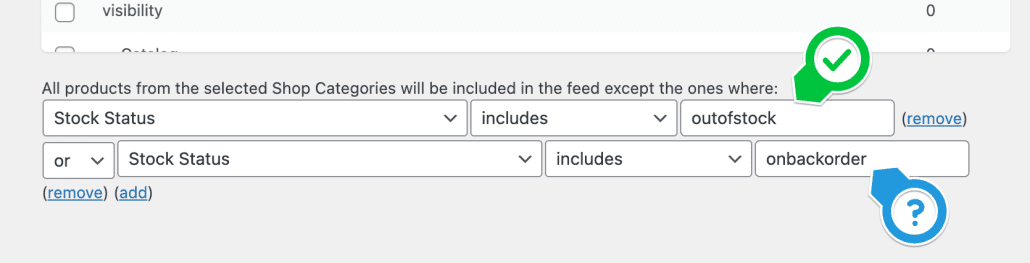
How to Use the Advanced Product Filter:
- Access Filter Settings: In your product feed manager, you find the advanced filter under the Category mapping tool.
- Set Conditions: Create a filter condition that targets the ‘stock status’ attribute of your products. Configure the filter to exclude products where the stock status is ‘outofstock’. (In the image example we also exclude products on back order)
- Apply and Save: Once your filter is set, apply the changes and save your settings. Your feed will now automatically exclude any products that are out of stock, ensuring only available items are displayed.
By following these steps, you can effectively manage the visibility of out-of-stock items in your product feed, whether by temporarily updating their availability status or excluding them altogether using advanced filters.