Performance metrics from Product Feed Manager can be used to structure and optimize your Google Shopping campaigns.
By segmenting products based on real WooCommerce performance data, you can allocate budget more efficiently and improve campaign results.
This article explains practical ways to use performance metrics in your Google Shopping strategy.
Step 1: Map Performance Data to Custom Labels
To use performance data in Google Ads, first map performance metrics to custom labels in your product feed.
Example mapping:

Example mapping:
Attribute: custom_label_0
Source: Performance (high/mid/low)
Optional advanced mapping:
Attribute: custom_label_1
Source: Revenue last N days
After mapping, regenerate the product feed and make sure it is synced with Google Merchant Center.
Step 2: Create Campaign or Ad Group Segments
In Google Ads, you can use custom labels to segment products into separate campaigns or product groups.
Example campaign structure
- Campaign: High Performers → custom_label_0 = high
- Campaign: Medium Performers → custom_label_0 = mid
- Campaign: Low Performers → custom_label_0 = low
This allows you to control bids and budgets per performance tier.
Step 3: Adjust Bidding Strategy per Tier
Once performance tiers are segmented, you can apply different bidding strategies.
Typical approach:
- High performers → Higher bids or larger budgets
- Medium performers → Standard bidding
- Low performers → Lower bids or exclusion from campaigns
This helps concentrate spend on products that already generate conversions.
Step 4: Exclude Low Performers (Optional)
In some cases, you may want to fully exclude low‑performing products.
You can do this by:
- Excluding the low tier in Google Ads product groups
- Or excluding these products directly in the feed using Product Filters
Example filter rule:
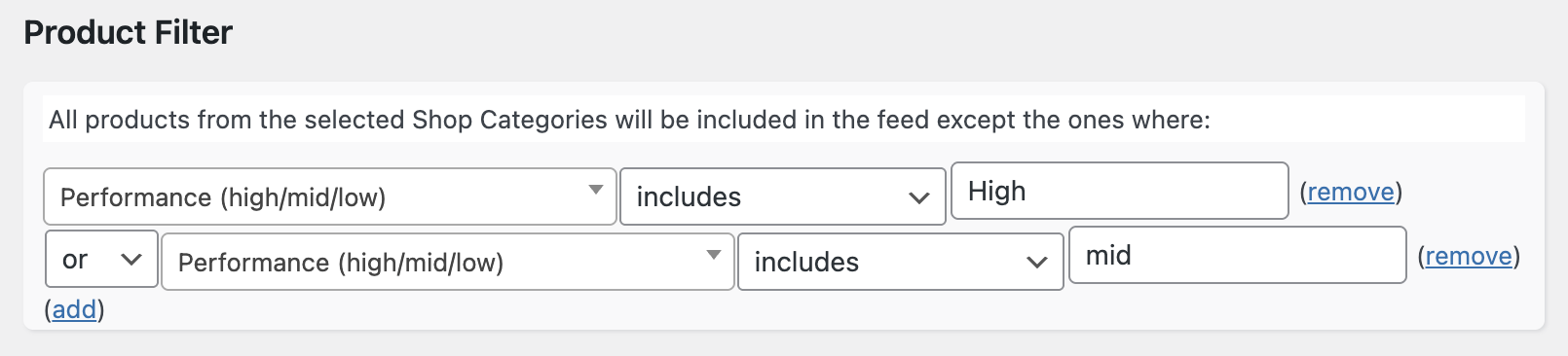
Only include products in teh High and Mid Performance tier
Step 5: Monitor and Adjust Over Time
Performance metrics are recalculated whenever the feed is generated.
As a result:
- Products can move between performance tiers
- Campaign performance may change
- Budget allocation may need adjustment
It is recommended to periodically review campaign results and refine bidding or segmentation.
Tips for Better Results
- Start with a 30‑day performance period for balanced segmentation
- Use longer periods if your store has low order volume
- Combine performance tiers with other signals, such as margin or stock availability
- Avoid making large bid changes too frequently
Summary
Using performance metrics in Google Shopping allows you to build campaign structures based on real store results.
By segmenting products into performance tiers and adjusting bids accordingly, you can improve budget efficiency and scale products that perform well.