How to Build a WooCommerce Product Feed for a Feed-Only PMax Setup
Key insights:

  • In feed-only PMax, your product feed is the entire ad. With no headlines, images, or video, the feed alone decides what you match against and how you show up. Every weakness in it is exposed directly to the auction.
  • The product title is where most feeds lose. Pushing the raw WooCommerce product name (“Blue Shirt”) into the title attribute matches almost nothing a buyer types. A structured title (“Brand + Men’s Cotton Shirt + Blue + Size L”) matches the searches that convert.
  • Google blocks the obvious setup path on purpose. You cannot save an assetless campaign in Google Ads directly. You create it from Google Merchant Center, then turn off Final URL Expansion and Automatically Created Assets so Google does not rebuild the assets for you.
  • A correct feed-only setup runs around 95% of traffic on Shopping. It still serves dynamic remarketing, but without assets it cannot run Search, Display, or video. You confirm the split with the PMax Insights script.
  • Build the feed to last. A 500×500 minimum image (Google’s 2027 floor), correct GTINs, accurate categories, and an automatic refresh keep the feed approved and current once the campaign concentrates all spend on it.

You read the case for a feed-only Performance Max campaign and you were convinced. No creative assets, no budget leaking into YouTube impressions, the algorithm constrained to the Shopping network where the buyers actually are.

Now the catch. The moment you strip the assets out of a Performance Max campaign, your product feed becomes the entire ad. There is no headline to carry a weak product title. There is no lifestyle image to compensate for a bad product photo. The feed does all the work, and a weak feed has nowhere to hide.

I see store owners get the campaign structure exactly right and then hand it a feed they built in five minutes. The campaign is the easy half. The feed is where this is won or lost.

This is a build guide. Part one is the feed, attribute by attribute, in WP Product Feed Manager. Part two is the feed-only campaign itself, including the workaround Google forces on you. Follow it in order and you will have a feed-only setup live by the end.

Why the Feed Carries Everything Here

In a standard Performance Max campaign, your assets act as a cushion. A vague title gets covered by the headline. A poor product image gets covered by a lifestyle photo and a video. The asset stack hides the cracks in your product data.

Feed-only removes the cushion. Every weakness in your feed is exposed directly to the auction. A thin title matches fewer queries. A missing GTIN filters the product out before it competes. A bad image quietly kills your click-through rate, and you have nothing else to show.

That is the reason to build the feed properly first. Get it right and feed-only is the most precise Shopping setup available to a WooCommerce store. So we start with the feed.

Budget distribution comparison: full PMax spreads spend across Shopping, YouTube and Display, feed-only concentrates around 95 percent on Shopping.
Full PMax spreads budget across channels; feed-only concentrates it on Shopping.

Part One: Build the Feed in WP Product Feed Manager

I build these feeds in WP Product Feed Manager, because feed-only leaves no room for the approximations a generic export produces. When the feed is the ad, you need control over every attribute. The steps below assume the plugin is installed and your license is active.

Step 1: Create the Feed and Pick the Channel

In WordPress admin, go to the “Product Feed” menu and open “Manage Channels”. Find Google Shopping in the list and click “Install”. You only do this once per channel.

Then create a new feed and give it a descriptive name. Choose the Google channel, set the country you are targeting, and set a default Google product category for your catalog. This default is the fallback Google uses when a product has no more specific category, so pick the one that fits the bulk of your range.

Step 2: Set the Update Schedule

Set the feed to refresh automatically. This is the schedule on which the plugin rebuilds the feed so prices, stock, and new or removed products stay current.

Do this now, at creation, rather than later. A feed-only campaign concentrates all your spend on Shopping, which means stale price or stock data does direct damage. An out-of-date feed gets products disapproved in Merchant Center, and disapproved products in a feed-only setup are pure dead weight. This is exactly why manual feed updates quietly sabotage Google Shopping performance. Set the refresh and the feed keeps itself honest.

Step 3: Map Your Categories to Google Categories

Use the category mapping tool to select which WooCommerce categories go into the feed, and map each one to the right Google product category.

Do not leave this on the default for everything. The Google category is part of how Google decides which queries your product is eligible for. Your WooCommerce categories and Google’s taxonomy are two different languages, and the mapping is where you translate between them. In feed-only, where the feed alone decides what you match against, precise categorization is precise matching. Map each category deliberately.

Step 4: Decide How Variations Appear

If you sell variable products, open the variations setting and choose how they appear in the feed: the parent product, individual variations, or a combination.

For most Shopping setups you want individual variations, so each color or size becomes its own product the shopper can match and click. There is one trap here worth knowing. If you map a parent-level attribute, the feed outputs every variation value comma-separated in one field, “30ml, 50ml, 100ml” in a single row, instead of a clean row per variant. Map the variation-level field so each feed row carries its own value.

Step 5: Build the Title, Your Only Ad Copy

This is the step that decides a feed-only campaign, and it is the one most stores get wrong.

Each feed attribute has a source dropdown next to it that controls where the plugin pulls the value from. The default behavior for the title attribute is to take the raw WooCommerce product name. So the feed goes out with a title like “Blue Shirt”. In a normal campaign that survives, because the headline fills the gap. In feed-only there is no headline. That title is the only copy Google has to match against a search, and “Blue Shirt” matches almost nothing a buyer types.

Build a structured title instead. In the title attribute’s source dropdown, choose “Combine source fields”. This lets you stitch several WooCommerce fields, and static text, into one title. Combine them so “Blue Shirt” becomes “Brand + Men’s Cotton Shirt + Blue + Size L”. Now you match searches for the brand, the material, the color, and the size, the exact terms high-intent shoppers use. Same product, far more of the right traffic.

Set this once with the combine function and every product follows the same pattern. This is the single highest-leverage thing you will do in the whole build.

Product feed title before and after: Blue Shirt becomes Brand plus Mens Cotton Shirt plus Blue plus Size L.
A raw product name matches little; a structured title matches what buyers search for.

Step 6: Set GTIN and Brand, the Eligibility Gate

A product with a missing or wrong GTIN can be filtered out before it reaches the auction. It does not lose, it does not even compete. Missing GTIN, MPN, and brand are among the most common reasons Merchant Center rejects products, and they are one of the warning signs of a sick product feed that quietly make products invisible on Google.

In the feed builder, map the GTIN attribute to the WooCommerce field where you store it, and map brand to an accurate source. Do not leave GTIN blank and do not let it fill with something arbitrary. If you genuinely have no GTIN for a product line, that is a different conversation about identifier exemptions, but never ship a wrong one. This is the gate that decides whether a product is allowed into the auction at all.

Step 7: Get the Image Right

In a feed-only setup the product image is the whole creative. There is no second image, no video, no lifestyle shot. What is in the feed is what the shopper sees.

By default the feed pulls the featured product image into the image_link attribute. Check it is a clean product shot, the correct product, with no watermarks or promotional text overlaid, those get products rejected. On size, Google is raising the minimum to 500×500 pixels for all products from January 31, 2027, and recommends 1500×1500, so build to at least 500×500 now rather than the old 100×100 floor that is about to expire. An undersized image does not get the product disapproved. It simply will not be shown, which is exactly the kind of quiet failure that costs you traffic with nothing flagging it. If you want to supply more angles, scroll to the bottom of the feed editor, click “Add optional output”, select additional_image_link, and map it to your image library.

Step 8: Add Custom Labels for Control

Custom labels are how you take back control inside a campaign that otherwise runs on autopilot. They do two jobs, and WP Product Feed Manager can build both from your real store data.

Turn on Performance Prioritizing. The plugin ranks every product into High, Mid, and Low tiers based on actual WooCommerce sales data over a period you set. Map that tier to a custom label, for example custom_label_0, and you can separate your proven performers from dead stock inside the campaign and push budget toward what converts.

For the second job, segmentation by economics, map a second custom label to margin or price tier. Now you can treat your high-margin lines differently from the rest instead of letting every product compete on equal footing regardless of what it earns you. Those same labels are what let you split products into listing groups per asset group once you want finer control over the campaign. Keep this light to start. Even a performance label and a margin label give you more control than most feed-only campaigns ever use.

Step 9: Generate and Submit

Generate the feed. The plugin produces the feed URL. Submit that URL in Google Merchant Center so your products are live and approved there. With the automatic update from Step 2 running, the feed now keeps itself in sync.

That is the feed built. Now the campaign.

Part Two: Build the Feed-Only Campaign

With a clean, complete feed in Merchant Center, you create the campaign. This is where Google works against you, because it does not make a feed-only campaign easy to set up by design.

Step 1: Create the Campaign From Merchant Center, Not Google Ads

Google Ads now blocks you from saving an asset group with no headlines and no images. Build the campaign directly in Google Ads and the interface will not let you finish. This is the single most reported obstacle on the forums: people make it to the last step and cannot save.

The way around it: create the campaign from inside Google Merchant Center, under “Marketing” then “Ad Campaigns”. Built from there, it comes through with a single asset group and without forcing assets on you. Once it appears in Google Ads, you finish the configuration there.

Step 2: Turn Off the Two Settings That Undo Feed-Only

In Google Ads, two settings will quietly rebuild the asset behavior you just avoided unless you switch them off.

Turn off Final URL Expansion. Left on, Google sends traffic to URLs it picks across your site rather than the product pages your feed points to.

Turn off Automatically Created Assets. Left on, Google scrapes your site and generates its own headlines and images, which puts you straight back into the asset-driven behavior feed-only exists to prevent.

Both off. This is the step that actually makes the campaign feed-only rather than feed-only in name.

Step 3: Set Location Targeting to Presence

Set location targeting to “Presence”, people in or regularly in your targeted locations. Google’s default also includes people who merely show interest in your locations, which widens your reach into traffic far less likely to buy. Presence keeps you on the people who are actually there.

Step 4: Fill Only the Mandatory Asset Fields

You still have to fill the mandatory fields even though you are adding no creative. Leave every headline, description, image, and video field blank. Complete your Business Name and a Call-to-Action. The campaign will not run without those two, and they do not pull you out of feed-only.

What Success Looks Like

A correctly built feed-only campaign concentrates almost entirely on the Shopping network. In a typical setup, around 95% of traffic goes to Shopping, because that is where the buying intent is and, with no assets, it is the only place Google can show your products. It still serves dynamic remarketing, but without assets it cannot run Search, Display, or video.

You confirm this with the PMax Insights script. It produces the channel breakdown the standard Google Ads interface hides, so you can see exactly where your budget went. If Shopping is carrying the overwhelming majority of your traffic and revenue, the setup is doing its job. If meaningful spend is still leaking elsewhere, go back and check the two settings in Part Two, Step 2.

The Takeaway

The campaign structure is the easy half. The workaround is a fixed set of steps you do once. The feed is where a feed-only setup is actually won or lost, and the product title is where most feeds lose it. A campaign built perfectly on top of “Blue Shirt” titles will underperform a sloppier campaign built on titles that match what buyers search for.

Build the feed as if it is the only thing running, because in a feed-only setup it is.

Once your campaign is live, run the PMax Insights script and look at your channel split. That single chart tells you whether the setup is doing what you built it to do.

Frequently Asked Questions

Is it still possible to create a feed-only PMax campaign?

Yes. Google Ads blocks you from saving an asset group with no headlines or images, which is why people report being unable to finish the setup. The way around it is to create the campaign from inside Google Merchant Center under “Marketing” then “Ad Campaigns”, then finish the configuration in Google Ads. Once there, turn off Final URL Expansion and Automatically Created Assets so Google does not generate its own assets.

How do you create a feed-only PMax campaign step by step?

Create the campaign from Google Merchant Center under “Marketing” then “Ad Campaigns”, not from Google Ads directly. When it appears in Google Ads, turn off Final URL Expansion and Automatically Created Assets, set location targeting to “Presence”, and leave every headline, description, image, and video field blank. Fill only the mandatory Business Name and Call-to-Action. The campaign then runs on your product feed alone.

What is the point of a feed-only PMax campaign?

It concentrates your budget on the Shopping network instead of letting Performance Max spread it across YouTube and Display, where a full-asset PMax often sends 15 to 21 percent of spend for a fraction of the sales. For a WooCommerce store running real ad spend, that means more of your budget reaches shoppers with buying intent. The tradeoff is that the feed does all the work, so a weak feed has nowhere to hide.

Can Performance Max remarketing work with feed-only campaigns?

Yes. A feed-only campaign still serves dynamic remarketing alongside the Shopping network. What it cannot do without assets is run Search, Display, or video placements, because Google has no headlines, images, or video to build those ads from. So you keep bottom-of-funnel shopping and remarketing reach while cutting the asset-driven spend.

What makes a product feed good enough for a feed-only setup?

The title carries the most weight, because with no headline it is the only ad copy Google has, so build a structured title rather than the raw product name. Beyond that: correct GTINs and brand so products are eligible, accurate Google product categories so you match the right queries, and a clean product image of at least 500×500 pixels (Google’s minimum from January 31, 2027). An automatic feed refresh keeps prices and stock current so products are not disapproved.

Google Shopping Title Optimization: How to Craft Winning Titles for Maximum Impact
Introduction to title optimization

In the dynamic and competitive landscape of online retail, Google Shopping has emerged as a pivotal platform for businesses to showcase their products. At the heart of this platform’s effectiveness lies the art of crafting compelling product titles. This chapter delves into the critical role of product titles in Google Shopping and explores how optimized titles can significantly enhance ad performance, driving both visibility and sales.

Importance of Product Titles in Google Shopping

Product titles in Google Shopping are more than mere identifiers; they are the cornerstone of a product’s online presence. In a marketplace where consumers are inundated with choices, the title of a product acts as a primary filter, guiding potential customers to what they seek. It’s the first interaction point and often the deciding factor in whether a shopper clicks on a product or scrolls past it.

The significance of product titles extends beyond just attracting attention. In Google Shopping, titles are instrumental in how products are indexed and displayed in response to search queries. A well-crafted title, rich in relevant keywords and product specifics, aligns closely with the search intent of users. This alignment is crucial for ensuring that your products surface in the right searches, reaching the audience most likely to convert.

Overview of the Impact of Optimized Titles on Ad Performance

Optimizing product titles for Google Shopping is not just about adhering to best practices; it’s about understanding and leveraging the nuances of consumer behavior and search algorithms. An optimized title can dramatically transform the performance of your ads in several ways:

  • Enhanced Visibility: Titles that are carefully optimized with the right keywords and product details are more likely to rank higher in Google Shopping searches. This increased visibility means more eyes on your products, which is the first step in driving sales.
  • Improved Click-Through Rates (CTR): A title that succinctly and accurately describes the product resonates with the right audience. When shoppers see a title that matches their search intent, they are more inclined to click on the ad, thus improving the CTR.
  • Higher Conversion Rates: Optimized titles not only attract clicks but also set the right expectations. When a product title clearly communicates what the product is, shoppers are less likely to face surprises on the product page, leading to higher chances of conversion.
  • Cost-Effective Advertising: In the pay-per-click model of Google Shopping, every click counts. Optimized titles ensure that the clicks you get are from potential buyers, making your advertising spend more efficient.

In the following sections, we will explore the strategies and techniques to optimize product titles, common pitfalls to avoid, and industry-specific best practices. The goal is to empower you with the knowledge to craft titles that not only capture attention but also drive meaningful engagement and sales.

2. Understanding the Role of Product Titles

In the realm of Google Shopping, the product title is not just a label; it’s a powerful tool that can significantly influence the success of your online advertising efforts. This chapter focuses on understanding the multifaceted role of product titles in shaping ad visibility and click-through rates, as well as their interaction with Google’s sophisticated search algorithm.

How Product Titles Influence Ad Visibility and Click-Through Rates

Product titles are the forefront of your Google Shopping ads. They serve as the critical link between what a shopper searches for and the products you offer. The effectiveness of these titles in capturing attention and generating interest directly impacts your ad’s visibility and the likelihood of a shopper clicking through to your product page.

  • Visibility: In the crowded online marketplace, visibility is paramount. A product title that is clear, descriptive, and includes relevant keywords can significantly enhance the visibility of your ads. Google’s algorithm tends to favor titles that closely match the user’s search query, thereby increasing the chances of your ad appearing in search results.
  • Click-Through Rates (CTR): The CTR of an ad is a direct measure of its relevance and appeal to the audience. A compelling product title that accurately reflects the search intent of the user is more likely to resonate and result in a click. Titles that are concise, yet informative, and highlight unique selling points or key features of the product tend to have higher CTRs.

The Relationship Between Product Titles and Google’s Search Algorithm

Google’s search algorithm is a complex system designed to match users’ search queries with the most relevant and useful results. Product titles play a crucial role in this process, acting as a primary source of information for the algorithm to assess relevance.

  • Keyword Relevance: The algorithm evaluates the keywords in your product titles against the search queries entered by users. Titles that effectively incorporate relevant keywords are more likely to be deemed relevant by the algorithm, thus improving the product’s ranking in search results.
  • Quality Score: Google assigns a quality score to each product ad, which influences both its ranking and cost-per-click. A well-optimized product title contributes to a higher quality score by improving relevance and user experience, leading to better ad placement and potentially lower advertising costs.
  • Semantic Search: Google’s algorithm is increasingly adept at understanding the context and intent behind search queries. This means that product titles need to go beyond keyword stuffing and instead focus on creating meaningful, contextually relevant titles that align with the likely intent of the searcher.

In summary, product titles are a critical element in the success of Google Shopping campaigns. They not only attract and engage potential customers but also communicate with Google’s algorithm to improve ad performance. The next sections will delve into practical strategies for optimizing product titles, ensuring they serve both your business goals and the needs of your customers.

3. Key Strategies for Title Optimization

Optimizing product titles in Google Shopping is a blend of art and science. It requires a strategic approach to ensure that each title is not only informative and relevant but also engaging and search-friendly. This chapter outlines key strategies to optimize product titles effectively.

Utilizing the Full Character Limit Effectively

Google Shopping allows up to 150 characters for product titles, offering ample space to describe your product comprehensively. However, it’s crucial to use this space wisely:

  • Balance Detail with Brevity: While it’s tempting to use all 150 characters, clarity and conciseness are key. Aim for titles that are detailed yet succinct, avoiding unnecessary filler words.
  • Front-Loading Key Information: Since only a portion of the title may be visible in certain views, ensure that the most critical information is placed at the beginning.
  • Adapting to Mobile Views: With a significant portion of users shopping on mobile devices, it’s important to craft titles that are easily readable on smaller screens.

Incorporating Relevant Attributes (Brand, Size, Color, etc.)

Including relevant attributes in your product titles can significantly enhance their appeal and relevance:

  • Brand Name: If you’re selling products from well-known brands, include the brand name in the title. It can be a major draw for brand-loyal customers.
  • Size and Color: For products where size and color are important, such as clothing or accessories, make sure these details are prominently featured in the title.
  • Unique Attributes: Highlight unique or special features of the product that set it apart from competitors.

To include the relevant attributes in your title, using our Product Feed Manager, you can simply combine them, like below:

Google Shopping title optimization made easy with WooCommerce Product Feed Manager

Easily create optimized titles in WooCommerce Product Feed Manager

Watch our tutorial video on YouTube to learn how to edit attributes in your Product Feed with our Feed Editor.

Prioritizing Important Information at the Beginning of the Title

The structure of your product title can impact its effectiveness:

  • Most Important First: Always start with the most critical information. This could be the brand, product type, or a key feature.
  • Consider Search Habits: Think about how your customers search for products like yours and structure your titles accordingly. For instance, if consumers typically search by product type, start with that.

Using Customer-Centric Language and Integrating Important Keywords

To resonate with your audience and perform well in searches, your titles should be crafted with the customer in mind:

  • Speak the Customer’s Language: Use terminology and phrases that your customers use. This not only improves relevance but also makes your titles more relatable.
  • Keyword Integration: Conduct thorough keyword research to identify terms your customers are using in their searches. Integrate these keywords naturally into your titles.
  • Avoid Jargon: Unless you’re targeting a very niche market, avoid industry jargon that might confuse the average customer.

By implementing these strategies, you can create product titles that not only capture the essence of your products but also align with the needs and search behaviors of your target audience. This alignment is crucial for driving visibility, clicks, and ultimately, conversions.

4. Advanced Techniques for Enhanced Performance

To truly excel in the competitive landscape of Google Shopping, it’s essential to go beyond basic optimization and employ advanced techniques. These methods focus on refining your approach to product title optimization, ensuring that your titles not only attract attention but also drive performance. This chapter explores three key advanced techniques.

Creating Distinct Titles for Product Variants

When selling products with multiple variants, such as different colors, sizes, or features, it’s crucial to create distinct titles for each variant:

  • Highlight Unique Features: For each variant, emphasize the feature that differentiates it from others. For example, if you’re selling a shirt in multiple colors, make sure the color is prominently mentioned in each variant’s title.
  • Consistency with Variation: Maintain a consistent structure across all variants while changing the specific details. This approach helps in brand recognition and makes it easier for customers to find the exact variant they are looking for.
  • Avoid Duplication: Ensure that each title is unique to prevent confusion and improve the searchability of each product variant.

Balancing Readability and Keyword Inclusion

A well-optimized title must strike a balance between being keyword-rich and reader-friendly:

  • Natural Keyword Integration: Instead of stuffing titles with keywords, integrate them in a way that reads naturally. Remember, your titles are primarily for customers, not just search engines.
  • Focus on User Intent: Understand the intent behind the keywords your customers use and craft titles that address this intent. This approach ensures that your titles are not only keyword-optimized but also resonate with the user’s needs.
  • Readable and Engaging: Ensure that your titles are easy to read and engaging. A title that is a jumble of keywords may rank well but could fail to attract clicks if it doesn’t make sense to the shopper.

Leveraging Optimization Tools for Data-Driven Improvements

Utilizing data-driven tools can significantly enhance the effectiveness of your title optimization efforts:

  • Analytics Tools: Use tools like Google Analytics to understand how users interact with your listings. Look for patterns in the titles of high-performing products and apply these insights to optimize other titles.
  • A/B Testing Tools: Implement A/B testing to compare different title variations and identify which elements resonate most with your audience. This method allows for continuous improvement based on actual performance data.
  • Feed Management Tools:  Enhance your optimization process with our advanced WooCommerce Product Feed Manager tool. Designed to automate and simplify your workflow, this powerful tool excels in bulk editing titles and intelligently crafting optimized product titles. It leverages product attributes and WooCommerce Product sources, ensuring uniformity and coherence throughout your entire product catalog for maximum impact.

By employing these advanced techniques, you can further refine your product titles, making them more targeted, relevant, and effective. This approach not only enhances the visibility of your products in Google Shopping but also drives better engagement and conversion rates.

5. Common Pitfalls to Avoid

While optimizing product titles for Google Shopping, it’s just as important to be aware of common pitfalls as it is to implement best practices. Certain mistakes can not only diminish the effectiveness of your titles but also negatively impact your ad’s performance and reputation. This chapter highlights key pitfalls to avoid in your title optimization journey.

Overuse of Capitalization and Promotional Text

  • Capitalization: Excessive use of capital letters can make titles appear aggressive or spammy, which can deter potential customers. Use capitalization judiciously, primarily for brand names or to highlight a specific feature, ensuring that the title remains easy to read and professional in appearance.
  • Promotional Language: While it’s tempting to include promotional phrases like “Best Offer”, “Discount”, or “Sale” in your titles, this can backfire. Google Shopping prefers straightforward, descriptive titles. Promotional content can be seen as misleading or as an attempt to game the search algorithm, leading to lower ad rankings or even disapproval of your listings.

Misleading or Inaccurate Titles

  • Accuracy is Key: Ensure that your titles accurately reflect the product. Misleading titles may increase clicks initially, but they lead to poor user experience, increased bounce rates, and lower conversion rates. This not only affects your immediate sales but can also harm your brand’s reputation in the long run.
  • Consistency with Product Page: The information in your title should match the details on the product page. Inconsistencies between the title and the product page can confuse customers and may be flagged by Google, affecting your ad’s performance.

Excessive Use of Abbreviations or Acronyms

  • Understandability: While abbreviations and acronyms can save space, they may not be understood by all customers. Use common and widely understood abbreviations, and avoid industry-specific jargon unless you are targeting a niche market.
  • Balance with Clarity: If using abbreviations is essential, balance them with clear, descriptive language elsewhere in the title. This approach ensures that while you are optimizing space, you are not sacrificing the title’s clarity and understandability.

By steering clear of these common pitfalls, you can ensure that your product titles are not only optimized for Google Shopping’s algorithms but are also appealing and clear to your potential customers. This balance is crucial for driving both short-term clicks and long-term customer trust and loyalty.

6. Continuous Optimization and Testing

In the ever-evolving landscape of online retail and search engine algorithms, resting on your laurels is not an option. Continuous optimization and testing are key to staying ahead of the curve and ensuring your Google Shopping campaigns remain effective and competitive. This chapter focuses on the importance of regular updates, A/B testing, and data analysis in refining your product title strategies.

The Importance of Regular Title Updates and A/B Testing

  • Staying Relevant: Regularly updating product titles ensures they remain relevant and in tune with current market trends, seasonal changes, and consumer search behaviors. This practice is vital for maintaining the visibility and attractiveness of your ads.
  • A/B Testing for Google Shopping Title Optimization: A/B testing, or split testing, is a method of comparing two versions of a product title to see which one performs better. You can gain valuable insights into what resonates best with your audience by systematically testing different elements of your titles, such as keyword placement, structure, or the inclusion of specific attributes.
    • Implementing A/B Tests: Start by changing one element at a time in your product title to understand its impact. For instance, test different keyword orders, the presence or absence of brand names, or the inclusion of specific product features.
    • Measuring Results: Use key performance indicators (KPIs) like click-through rate (CTR), conversion rate, and return on ad spend (ROAS) to measure the impact of each variation.

Analyzing Performance Data to Refine Strategies

  • Data-Driven Decisions: Utilize tools like Google Analytics and Google Ads to gather data on how your product titles are performing. Look for patterns in the titles of high-performing products and apply these learnings to optimize other titles.
  • Key Metrics to Monitor: Pay close attention to metrics such as CTR, conversion rate, average cost per click (CPC), and overall ad spend. These metrics provide insights into not only how attractive your titles are but also how well they convert interest into sales.
  • Responding to Data: Be prepared to make swift changes based on your findings. If certain titles consistently underperform, analyze and revise them. Conversely, if a particular structure or phrasing works well, consider applying it to other products in your catalog.
  • Seasonal and Market Trends: Stay attuned to changes in market trends and consumer behavior. For example, during holiday seasons, incorporating relevant keywords and phrases into your titles can capture more seasonal traffic.

Continuous Title optimization in Google Shopping and testing are not just about improving performance; they are about understanding your audience better and aligning your offerings more closely with their needs and search behaviors. This ongoing process ensures that your Google Shopping campaigns remain dynamic, relevant, and effective in driving both traffic and conversions.

7. Best Practices and Examples per Industry Vertical

Crafting effective product titles for Google Shopping requires an understanding that different industries have unique needs and customer expectations. This chapter provides insights into tailoring product titles to meet industry-specific requirements and showcases examples of optimized titles across various verticals.

Tailoring Product Titles According to Industry-Specific Needs

Each industry has its own set of attributes that customers prioritize when searching for products. Understanding these nuances is key to creating titles that resonate with your target audience.

  • Apparel and Fashion: Focus on brand, size, color, and style. Customers often search for clothing items based on these attributes.
  • Electronics and Gadgets: Highlight brand, model number, and technical specifications like storage capacity or screen size. Shoppers in this category tend to look for specific models and features.
  • Home and Garden: Emphasize the type of product, material, and intended use or room. For example, customers might search for “outdoor waterproof garden furniture” or “stainless steel kitchen knife set.”
  • Beauty and Personal Care: Include the brand, product type (e.g., moisturizer, lipstick), and specific concerns or benefits (e.g., “for sensitive skin,” “long-lasting”).
  • Sports and Fitness: Focus on the type of equipment, intended use (e.g., “running,” “yoga”), and any special features or technologies.

Examples of Optimized Titles in Different Verticals

Here are examples of optimized product titles for various industries, demonstrating how to incorporate key attributes effectively:

  • Apparel and Fashion: “Levi’s Women’s Skinny Jeans – Size 8, Dark Blue, Stretch Denim”
  • Electronics and Gadgets: “Samsung Galaxy S21 Ultra – 256GB, Phantom Black, 5G Smartphone”
  • Home and Garden: “Ergonomic Office Chair with Lumbar Support – Mesh Back, Adjustable Arms”
  • Beauty and Personal Care: “Clinique Dramatically Different Moisturizing Lotion+ – 125ml, For Dry to Dry Combination Skin”
  • Sports and Fitness: “Nike Air Zoom Pegasus 37 Men’s Running Shoes – Size 10, Breathable Mesh, Black”

In each of these examples, the titles are structured to highlight the most-searched-for attributes in their respective categories. They provide clear, concise information that aligns with what customers in these verticals are likely to search for, thereby increasing the chances of the product being found and clicked on.

By tailoring your product titles to meet the specific needs and search behaviors of your industry, you can significantly enhance the visibility and appeal of your products in Google Shopping. This targeted approach ensures that your titles are not only optimized for search algorithms but also resonate with the preferences and requirements of your customers.

8. Conclusion

As we conclude this guide on optimizing product titles for Google Shopping, it’s important to reflect on the key insights and strategies that have been discussed. The journey through the chapters underscores the pivotal role of title optimization in the success of your online retail strategy.

Summarizing the Importance of Title Optimization in Google Shopping

Title optimization in Google Shopping is not just a task; it’s a strategic endeavor that can significantly impact your online presence and sales. The right titles can enhance visibility, improve click-through rates, and ultimately drive conversions. They are the first point of contact between your product and potential customers, acting as a decisive factor in the crowded digital marketplace.

Effective title optimization involves understanding and implementing best practices tailored to your specific industry, audience, and product offerings. It’s about striking a balance between being descriptive and concise, integrating relevant keywords without compromising readability, and continuously adapting to changing market trends and consumer behaviors.

Encouraging Ongoing Testing and Refinement for Best Results

The landscape of online shopping and consumer search behaviors is constantly evolving. Therefore, title optimization is not a one-time effort but an ongoing process. Regular testing and refinement of your product titles are crucial to stay ahead of the competition and align with the latest search engine algorithms and consumer trends.

    • Embrace A/B Testing: Regularly conduct A/B tests to compare different title variations. This approach allows you to understand what resonates best with your audience and leads to higher engagement and conversion rates.
    • Analyze and Adapt: Use analytics tools to monitor the performance of your product titles. Analyze key metrics such as click-through rates and conversion rates to identify what works and what doesn’t. Be ready to adapt your strategy based on these insights.
    • Stay Informed and Responsive: Keep abreast of the latest trends in your industry and changes in Google’s algorithms. Respond quickly to these changes by updating your titles to maintain relevance and effectiveness.

Start optimizing your Google Shopping titles with our Product Feed Manager.

To streamline this process and harness the full potential of your Google Shopping titles, we encourage you to download Our Product Feed Manager. This tool is designed to simplify and enhance the optimization process, offering features like bulk editing and dynamic title creation based on product attributes. With Our Product Feed Manager, you can ensure consistency across your product catalog, saving time and resources while maximizing the impact of your titles.

In conclusion, remember that title optimization is not a one-time task but a continuous journey. By leveraging Our Product Feed Manager, you can embark on this journey with confidence, equipped with the tools and insights needed to craft titles that resonate with your audience and drive your e-commerce success. Start Optimizing your Google Shopping Product Titles with Our Product Feed Manager today and start optimizing your Google Shopping titles for a brighter, more profitable online presence.

Setup a basic Google shopping feed

Setting up the feed

In this post and video we want to show you how to setup a basic Google shopping feed with our Woocommerce Google feed manager.

First step we create a feed and give it a descriptive name, choose the Google channel, the country we want to target, and the default Google category for our products.

Next we set the Update schedule witch is the time when you want the plugin recreate the feed so it wil contains the right products and the right product data like prices and removed or new products etc.

Category mapping

woocommerce google feed manager category mapping

Category mapping

After setting the ‘Update schedule’ we start with mapping the shop categories to the relevant Google categories. The select all the categories from the products we want to include in our feed. After that we can map the products to a google category. By default it is connected to the earlier choose default category.

With the dropdown you can easily choose the right Google category the products belong to. You will find all available categories from Google in the dropdown. When mapping a Google category to a top level product category the child categories are mapped to the same google category.

Remember, the products from the product categories you did not select will not be included in the google feed. So you must select at least one category in order to create a feed with products in it.

This is basically it. You can save your feed and start using it.

Special feed settings

There are settings that in some cases can cause a feed to generate errors in Google Merchant center. For example if you do not have a SKU for each product you would need to change the id to post_id in stead of the standard SKU.

An other example is that you need to have a unique identifier like a GTIN number, MPN and Brand. If you miss these identifiers you can set the identifier exist’ to False. Please note that Setting it to ‘False’ for products that do have an identifier will not work; Google will disapprove those products or even suspend your account.

Under ‘Highly recommended’ you find the Product_type field This field represents your webshop product category and i always set it to Product Category String. The ‘Product category string’ shows the product categories with arrows formatted like this: Mother category > Child > Grandchild

Try to set as manny Highly recommended fields as you possible can like the MPN and is_bundle field. This will give Google some vital data so it can match your products way better.

Save and view the feed

woocommerce google feed manager feed list

Feed List

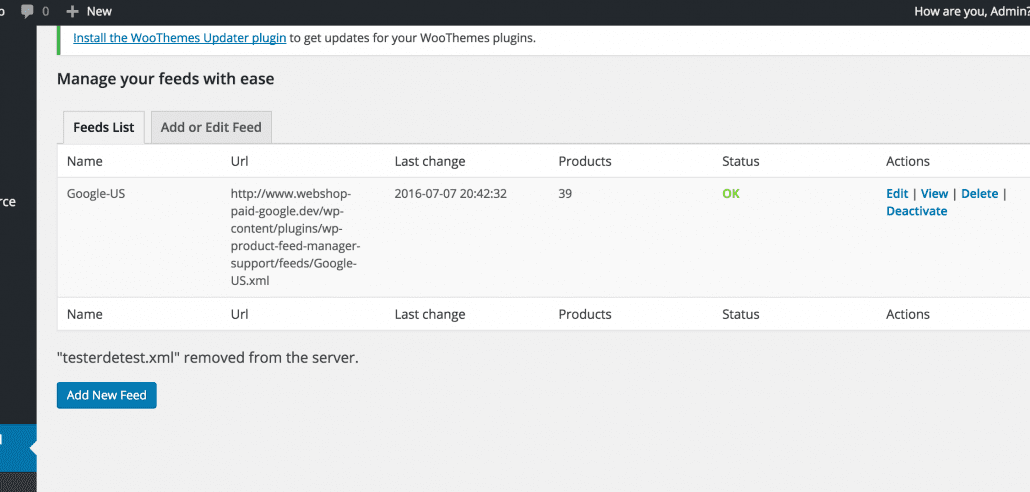
Next step is saving your feed and check the feed in the feed list. It will show you the feed url, how many products there are in the feed, the status of the feed and action links.

When you click the ‘View’ button you can view the feed in your browser. Note that every browser shows the feed different and you should get familiar how to see the xml code in your particular browser. For example the Chrome browser will display the xml feed without a problem but Firefox you will need to add ‘view-source:’ for the url in the adres bar.

Activate your feed

The last step is to activate your feed. This will make the plugin renew the feed with the earlier set Update schedule of the feed settings.

Watch the video to see creating a feed in action. There will be video’s with more advanced setup of the feed and will show you what you can do more with Woocommerce Google feed manager.

Please let us know if you have any question about using the plugin and get te best out of it.

Manage Channel templates

Add, remove and update channel templates

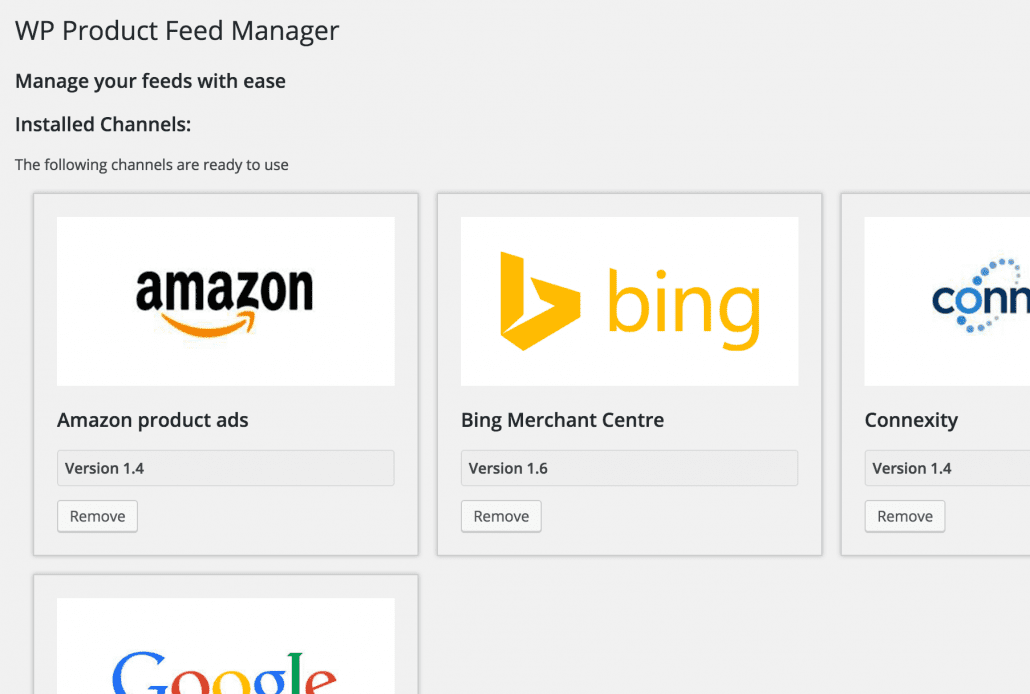
We have updated the google channel template and i wanted to to take this opportunity to show you how the “manage channel section” works ie installing, updating and removing channels.

First of all visit the “manage channels” section of the plugin.
You will find the installed and Uninstalled channel templates we support.

You will need to install a Channel template before you can use him in the Feed manager. So when you just started with our plugin the first thing you will have to do is to install the Channel of your choice.

Installing and Uninstalling is really easy Just Click on the install or Remove button to either install of remove the channel from the feed manager.

Updating Channels is important

Updating the channels is really important. We will always update channels as soon as the channel makes any changes in their feed requirements. By updating your Channel templates you are sure your feed will be approved by the Channel.

A channel will show a red version alert when there is a new update. Click the Update button to start the update. It is that easy.

Unsupported channel?

When your missing a template where you would like to show your product on. Please request the channel in our Feature request forum and we love to add the channel to our list of supported channel templates.

Exclude product from your feed

Advanced product filter

As off version 0.31.0 from our wp product feed manager and version 0.18.0 of the Woocommerce Google feed manager we have added advanced filter options. It will make it possible to exclude product from your product feeds.

Before, you could exclude and include products only by selecting the right category under “Category Mapping” This is not always right because you may have categories where you don’t want to include all product.

There are many situations where you would like to be able to exclude certain product from your feed. For instance you would like to exclude seasonal products, unprofitable products, products out of stock and not available.

Advance product filters, how to

Let’s take a look at the new filter options where to find them and how they work.

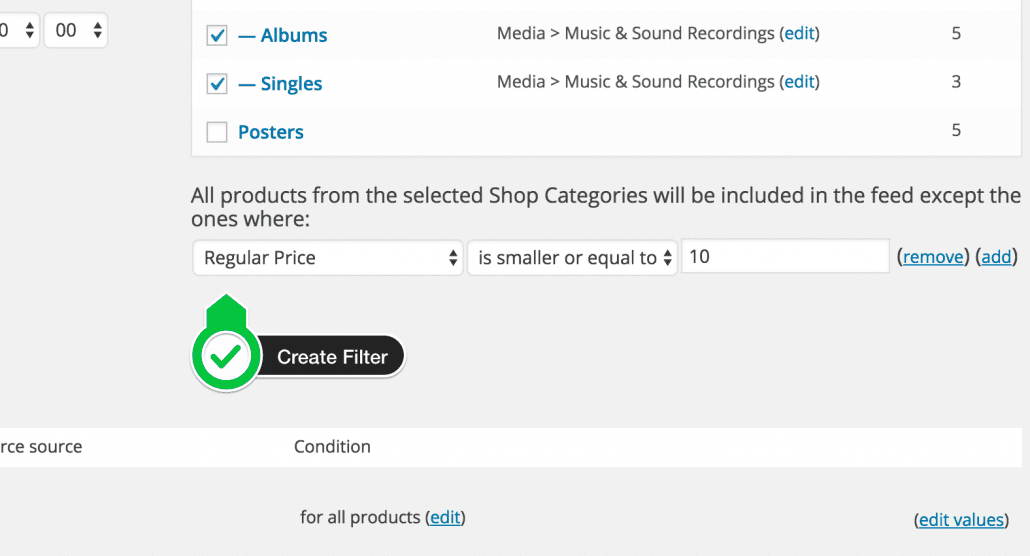
Let say we have products with low price in one category where CPA will exceed gross margin. So we want to exclude products under 10 bugs in the Music category.

Under the Category mapping we find a edit button next to the sentence “All products from the selected Shop Categories will be included in the feed”

advanced-product-filtering

When we click this button we get af familiar setup we also find under Condition with the attribute mapping.

How to use it

advanced-product-filter-create

We first select a source field “Regular price” next we select in the dropdown “is smaller than” and fill in 10. When we save the feed we will no longer have products in the feed with a regular price below $ 10,-

That’s how easy it is to use. Take an other look at the video for a walk through.