
Key insights:
- “Ready (auto)” is a setting, not proof the schedule ran: a stalled feed produces zero visible errors in wp-admin while quietly drifting out of sync with your live prices.
- Server-side cron only fixes half the problem: even a correctly configured server-side cron job can run under a separate, lower PHP memory limit than your site’s normal requests, and that’s a hosting-level fix, not a WordPress setting.
- Google can’t tell a stale feed from a real pricing mistake: both trigger the same preemptive item disapproval, often before you notice anything’s wrong.
- The real proof is a live test, not the status column: change a price, wait past your interval, and confirm the feed itself picked it up.
- This is core WordPress behavior, not a plugin bug: it applies no matter which feed plugin runs on top of WP-Cron.
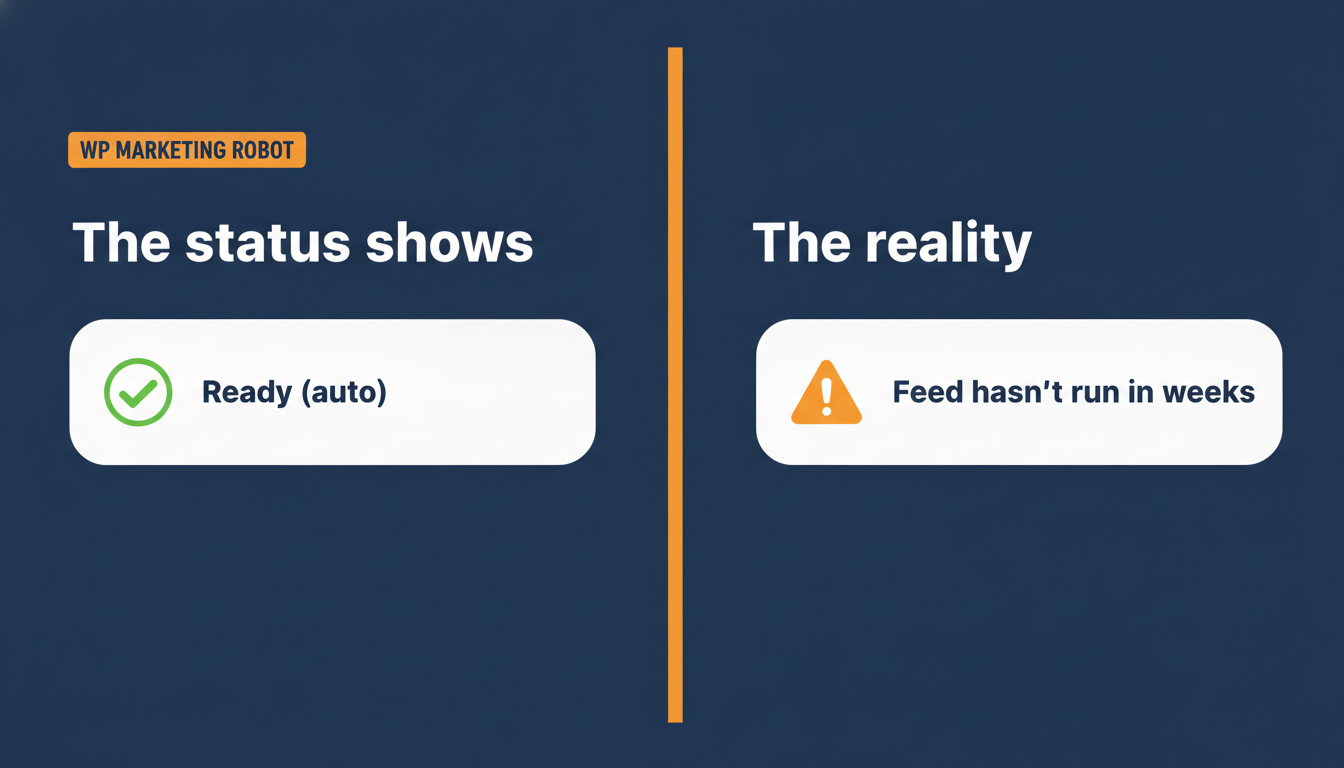
A WooCommerce store’s product feed sat frozen for months. The schedule said daily at 3 a.m. The status column said Ready (auto). Nothing in WordPress showed an error, no red banner, no failed-job notice, nothing.
Google Merchant Center didn’t care about any of that. Its crawler compared the price in the feed to the price on the live product page and to the schema markup on that page, if any existed. It found a mismatch and triggered a preemptive item disapproval, pulling the product before a single shopper could see the wrong price at checkout. That check runs over hours to days, not instantly, which is exactly why a stale feed can sit quietly for weeks before it turns into a wave of disapprovals that looks like it came out of nowhere.
Why this isn’t really about Google
A stalled schedule is one of several warning signs a WooCommerce feed is quietly sick before it turns into a full disapproval wave. Merchant Center disapprovals sort into a handful of broad buckets: missing data, policy issues, inaccurate data, technical issues. Most store owners read that and go straight to Merchant Center to argue their case. Wrong place to start. Two of those, missing data and inaccurate pricing, usually trace back to your own product data and feed setup, not anything wrong inside Google, the same feed requirements covered in why a product isn’t appearing on Google Shopping in the first place.
Here’s the part that trips people up. Google’s system cannot tell the difference between “the merchant changed the price on purpose and forgot the feed” and “the feed hasn’t updated since March.” It sees a mismatch and it acts. A stalled feed produces the exact same symptom as a genuine pricing mistake, and Google treats both the same way.
The real cause, and it’s not what most people check first
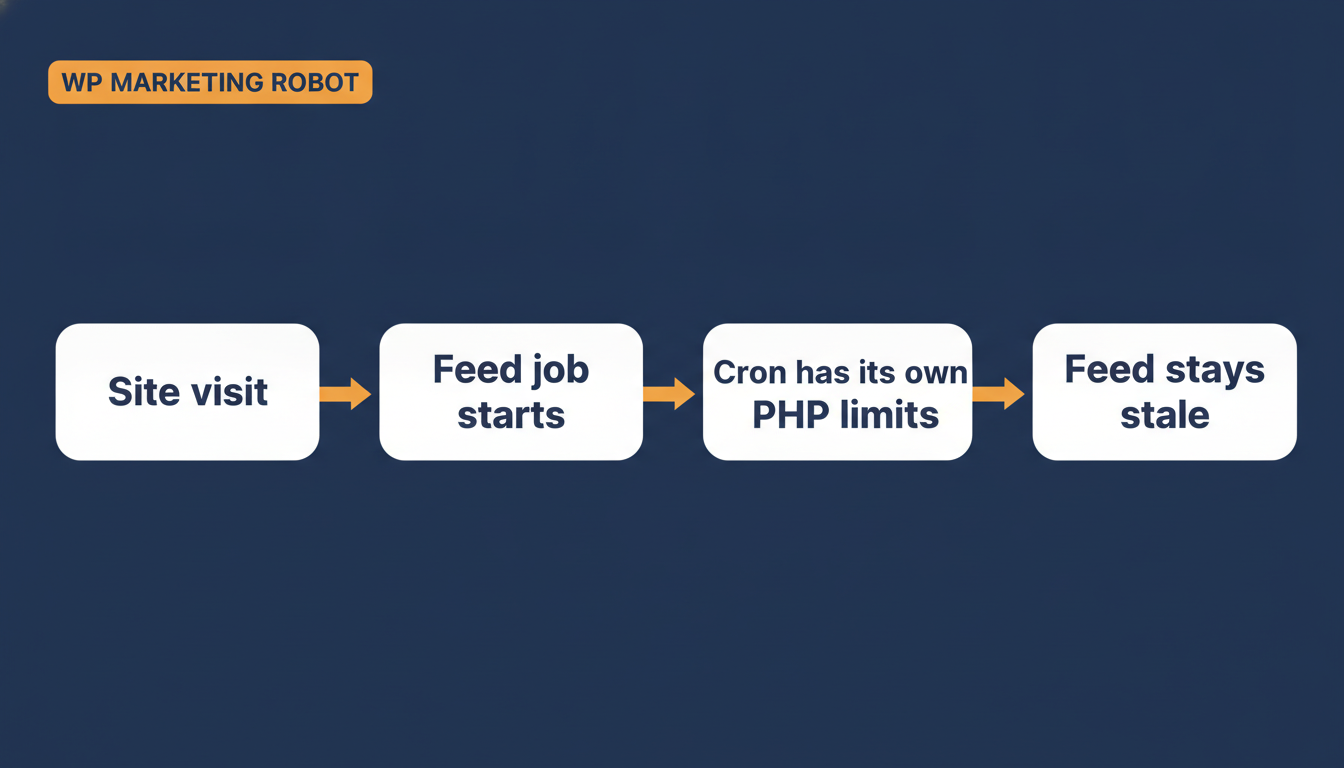
WordPress doesn’t have a real cron system. WP-Cron, the built-in scheduler every plugin relies on for anything time-based, only fires when someone visits the site. On a quiet store, or on certain hosting setups, that’s not often enough, and a lot of WooCommerce merchants already know this half of the story.
What most don’t know is the second half. Even once a host’s server-side cron is wired up correctly, the process that actually runs it often executes under a PHP configuration completely different from the one your site uses for normal visits, including a lower memory limit. In one case we traced, that limit was down to roughly 1MB, an extreme example, but even a moderate cap is enough to kill a feed generation job for anything beyond a tiny catalogue. It gets capped or fails partway through, and because the failure happens outside a normal WordPress request, nothing surfaces as an error in wp-admin. The schedule still says auto. The feed still says ready. It just never actually ran.
This isn’t a one-off. It’s the same signature across a cluster of support tickets this year: auto-on correctly set, schedule correctly set, feed frozen anyway. And it’s worth saying plainly, this is how WordPress itself handles scheduled tasks. It has nothing to do with which feed plugin you run.
The three things to check this week
- Open your feed list and look at the status column. It should say “Ready (auto),” not “Ready (manual).” If it’s manual, nothing updates until you click it yourself, and that’s a separate, simpler problem to fix.
- Check the actual interval. WP Product Feed Manager’s default is daily at midnight. For a store running active price changes or regular sales, every 6 to 12 hours is a better balance between a fresh feed and server load. On shared hosting, stay closer to 12 hours. On a VPS or dedicated server, you can go tighter, the same server-resource tradeoff that shows up when a feed plugin has to handle 10,000+ SKUs without crashing.
- Set up a server-side cron job through your hosting control panel, and confirm it has real memory to work with. This is the step that actually catches the failure described above. A server-side cron removes the dependency on site visits, but that alone doesn’t guarantee success if the cron’s own PHP process is still capped. If your feed still isn’t moving after switching to server-side cron, ask your host directly whether the cron job runs under the same memory limit as your normal site requests. Raising the memory_limit setting inside WordPress doesn’t touch this, the fix has to happen in the hosting cron configuration itself.
If you’ve just fixed a price and don’t want to wait for the next scheduled run, the manual regenerate button is the immediate unblock. It runs under your site’s normal PHP settings, not the cron environment, so it isn’t affected by any of this.
What success actually looks like
Don’t just check that the status column says auto. Change a price on one product, wait past your configured interval, and confirm the feed itself picked it up without you touching the regenerate button. That’s the only real proof the schedule is running, not just set.
One honest limit worth naming: WP Product Feed Manager keeps your feed price accurate, but it doesn’t touch the schema markup on your product pages. That’s a separate SEO or schema plugin’s job, and Google checks that markup too when it evaluates a price match.
A feed that says “auto” is a setting, not proof that it ran. Treat it like any other silent failure and check it directly, the same way you’d check that a backup actually completed instead of trusting that the job exists. This sits alongside the rest of what feed optimization for WooCommerce actually covers, reliability comes before ranking.
If you want the full step-by-step, including exactly how to set up the server-side cron job, the help article on setting automatic feed updates has been updated to cover this specific failure mode.
Frequently asked questions
What can I do about products disapproved in Google Merchant Center for a price mismatch?
Fix the underlying data first, whichever of your feed, product page, or schema markup is wrong, then request a review inside Merchant Center. The disapproval doesn’t clear automatically once the data is correct, Google needs the manual review request. Give the recheck a few hours to days to complete.
Why did Google disapprove products even though I didn’t change any prices on purpose?
Google’s crawler can’t tell the difference between a merchant who changed a price and forgot to update the feed, and a feed that simply stopped updating months ago. Both produce the same mismatch between the feed price and the live page price, and Google reacts to the mismatch, not the reason behind it. That’s usually the sign a schedule stalled rather than that anyone made a pricing mistake.
My feed status says “Ready (auto),” why isn’t it actually updating?
That label describes the setting, not a completed run. WP-Cron, the scheduler behind it, only fires when someone visits the site, and even a server-side cron job can silently fail for a separate reason. Confirm it’s working by changing a price and checking whether the feed picks it up after your configured interval, not by trusting the status column alone.
I already raised my PHP memory limit, why is my feed still not updating on schedule?
Because the memory_limit you set inside WordPress applies to normal web requests, not necessarily to the process your host uses to run cron jobs. That process often runs under its own, separate PHP configuration. The fix has to happen in your hosting’s cron configuration specifically, ask your host whether the cron process shares the same memory limit as your site.
How do I know my feed schedule is actually working, not just switched on?
Change the price on one product, wait past your configured update interval, and check whether the feed file itself reflects the new price without you clicking the manual regenerate button. That’s the only real confirmation. A status column that says “auto” is a configuration, not a completed run.