

Key insights
- WP Product Feed Manager already has two ways to exclude products from your feed: a static Advanced Product Filter (price, stock, missing data) and a data-driven Performance Prioritizing rule (zero orders or revenue in the last N days).
- Excluding a product in the feed removes it from every channel at once, Google, Meta, Bing, and TikTok, instead of repeating the same exclusion per channel in Merchant Center or Performance Max.
- The most common reason a rule “does not work” is that it points at the wrong WooCommerce field. WooCommerce often stores the same value, size is a common example, in more than one place.
- Test a new rule against one small, known category before trusting it on your full catalog.
Open the feed editor in WP Product Feed Manager, go to “Category Mapping”, and one sentence is sitting there waiting: “All products from the selected Shop Categories will be included in the feed except the ones where:”, followed by an edit link.
Most store owners read past it. The categories get checked, the feed gets built, and that “except” clause never gets touched. It is a working exclusion engine, sitting unused inside a plugin they are already paying for.
This covers what it can actually do, five concrete rules across two different mechanisms, and the one mistake that makes people think it does not work at all.
Why fixing it in the feed beats fixing it downstream
Google Merchant Center has its own way to hide a product from one channel, the [excluded_destination] attribute, and Performance Max has listing group filters to exclude a subgroup inside a single campaign. Both work. Both also mean setting the exclusion up again for every channel you advertise on: once for Shopping ads, again for Performance Max, again if you ever add Meta, Bing, or TikTok through the same feed.
An exclusion built inside WP Product Feed Manager happens once, before the product ever leaves WooCommerce in a shape any channel can advertise. Exclude it in the feed and it is gone from Google, Meta, Bing, and TikTok at the same time, because none of them ever saw it in the first place.
This is not a theoretical problem. A merchant posting in Shopify’s own community forum described building a manual workaround because they were tired of “burning ad money on products that just went out of stock,” and had grown “sick of manually pausing campaigns every morning, and still missing things on weekends.” Different cart, same failure. Nobody wants to babysit a campaign for a problem the feed could have solved before it started.
Prerequisites
Both mechanisms below live inside the feed editor of WP Product Feed Manager. You need the plugin active with at least one feed already built. Neither one needs a Google Ads account connected.
Advanced Product Filter, the static rules
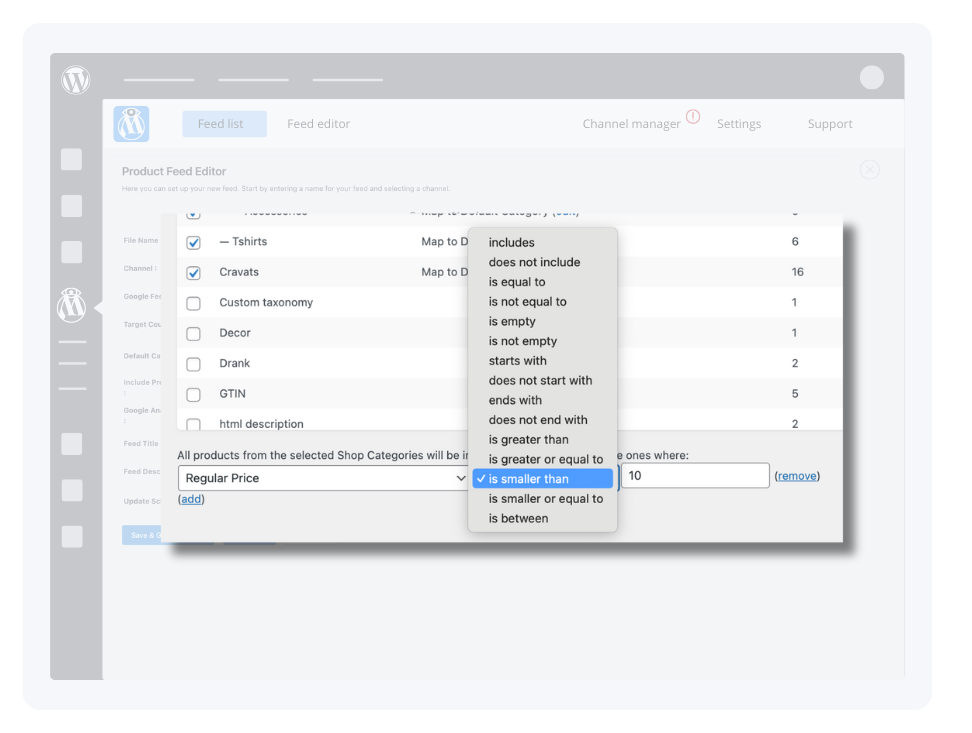
“Advanced Product Filter” is reached through the feed editor’s “Category Mapping” section.
- Open the feed editor and go to “Category Mapping”.
- Find the sentence “All products from the selected Shop Categories will be included in the feed except the ones where:” and click its edit link.
- In the condition editor, pick a source field. The plugin’s own documentation names [Product ID], [SKU], and [Regular price] directly, and its FAQ confirms a condition can run on any available WooCommerce field, which stretches to stock status, tags, and custom attributes too.
- Pick a condition. The only operator WP Product Feed Manager’s own documentation demonstrates is “is smaller than.” Do not assume other operators exist until you have checked the condition editor in your own install.
- Enter the value and save. The feed excludes matching products automatically from then on.
WP Product Feed Manager’s own official example: exclude everything in the Music category priced under $10, using [Regular price] “is smaller than” 10. It is a small rule, and it is the clearest way to see how the whole feature works: pick a field, pick a number, and anything on the wrong side of that number never reaches the feed.
None of this runs on its own. Every rule below is a separate condition you add through the same editor, the same way as the Music example, not something the plugin excludes for you by default. With that in mind, four more rules cover most of what a store actually needs kept out of a feed:
- Stock status equals “outofstock”, so a product with zero inventory stops competing for ad budget the moment it runs out, once you have added the condition.
- Missing [gtin] or [brand], so you are not paying to advertise products that lack basic identifying data, once that condition is in place.
- Margin below a threshold you set, so the feed stops sending budget toward products that lose money on every sale.
- Price below a fixed floor, the same logic as the Music example, applied wherever your own catalog needs it.
Set each one up once, and the feed applies it automatically from then on. Skip the setup, and nothing gets excluded, no matter how obviously a product qualifies.
Performance Prioritizing, the sales-data rules
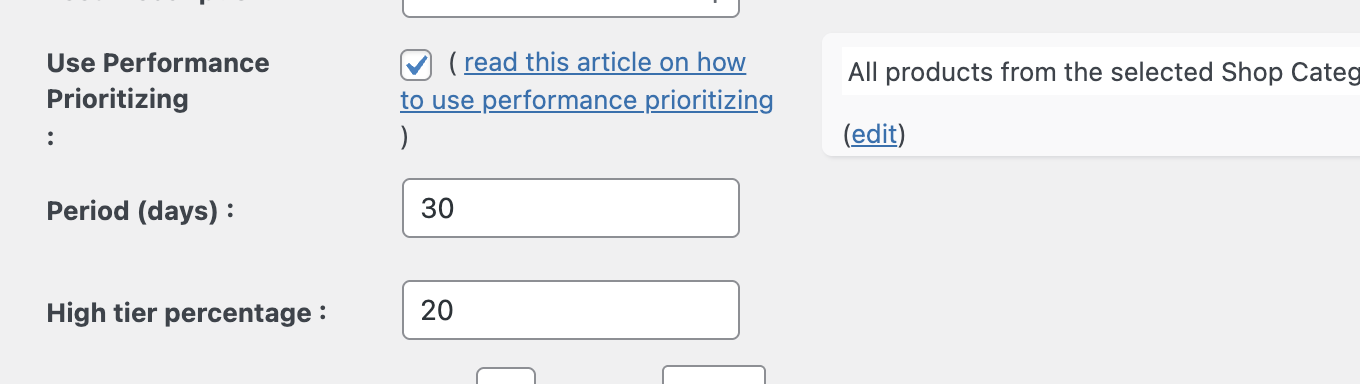
Advanced Product Filter catches the obvious cases: wrong price, wrong stock, missing data. It cannot catch a product that looks fine on paper, in stock, priced correctly, fully described, and simply never sells. That is what Performance Prioritizing is for.
It ranks every product into a performance tier, High, Medium, or Low, using the store’s own WooCommerce order and revenue history over a lookback window you set, anywhere from 7 to 90 or more days. No Google Ads account connection is needed. It runs entirely on data WooCommerce already has.
The fields it exposes, “Orders last N days”, “Revenue last N days”, and the custom label fields [custom_label_0] and [custom_label_1], plug into the same condition editor as Advanced Product Filter. It is one more source field inside the same system, not a second tool to learn. Build a rule that excludes anything with zero orders and zero revenue in the last N days, and the feed stops advertising what is effectively a zombie SKU: a product with nothing technically wrong that simply refuses to sell.
Why your first rule silently does nothing
WooCommerce has a habit of storing the same kind of value in more than one place. Size is the classic case. A store might have a `size` field, a `pa_size` attribute, and a custom field, all holding what looks like the same information.
Build a filter against the wrong one of those and nothing happens. The rule saves, the feed rebuilds, and every product that should have been excluded is still sitting in it. It looks broken. It is not. It is pointed at a field that has no matching data. That is a different problem from a feed that will not update at all, which is a caching or scheduling issue, not a filter issue.
Before trusting a rule, check which field actually carries the value you expect. The custom label fields, [custom_label_0] and [custom_label_1], help here too. Map the value you think you are filtering on into a custom label first, and you can see directly in the feed whether it says what you assumed it said.
How to know it is actually working
Do not point a new rule at the full catalog and hope. Pick one small category first, ideally one where you already know exactly which products should get excluded, maybe five or ten items total. Run the rule against just that category, then check the resulting feed by hand.
If it matches what you expected, expand it to the categories that actually need it. If it does not, you have caught the source-field problem above before it quietly excluded, or included, the wrong products across your entire catalog.
Going further
Two platform-level options exist for readers who want more control per channel. Google Merchant Center’s [excluded_destination] attribute removes a product from one destination, Shopping ads, free listings, or display ads, without touching the rest of the feed. Performance Max listing group filters exclude a subgroup inside a single campaign, based on category, brand, or custom label.
Both work. Both also mean setting up the exclusion again for every channel and every campaign, which is the opposite of what a feed-level rule gives you. Start in the feed. Reach for these only when one specific channel needs something the feed-level rule cannot express.
The takeaway
None of this needs a new tool or Merchant Center expertise you do not already have. WP Product Feed Manager already gives you a way to build an “except” rule for what you know about a product today, and a data-driven rule for what your own sales history already knows. Neither runs until you set it up. The only real skill involved is checking that a rule points at the right field, and testing it on a small category before trusting it on the rest.
If you are already thinking about the campaign side of this, Why Your “All Products” Google Shopping Campaign Is Quietly Wasting Your Money covers what to do once your feed stops sending everything, including what you have now excluded, into the same undifferentiated bid.
Open your own “Category Mapping” screen today. Pick one rule, out of stock, missing GTIN, a price floor, or a zombie SKU with no orders in 60 days, and set it based on what would actually move your return on ad spend.
Frequently asked questions
How do I exclude products from my Google Shopping feed?
In WP Product Feed Manager, open the feed editor and go to “Category Mapping”. The section reads “All products from the selected Shop Categories will be included in the feed except the ones where:”, and its edit link opens a condition editor where you pick a source field, a condition, and a value.
Which WooCommerce fields can I filter on?
The documented examples are [Product ID], [SKU], and [Regular price], but the plugin’s own FAQ confirms a condition can run on any available WooCommerce field, including stock status, tags, custom attributes, and the Performance Prioritizing fields like [custom_label_0].
Why is my exclusion rule not removing any products?
Almost always because the rule points at the wrong source field. WooCommerce frequently stores the same kind of value, size is a common example, in more than one field. Check which field actually holds the value before assuming the feature does not work.
Should I exclude products in the feed, or in Google Ads and Merchant Center?
In the feed, when you can. A feed-level exclusion removes the product before it reaches any channel, Google, Meta, Bing, or TikTok. Merchant Center’s excluded destination attribute and Performance Max listing group filters both work, but only per channel, so you end up repeating the same exclusion in more than one place.