
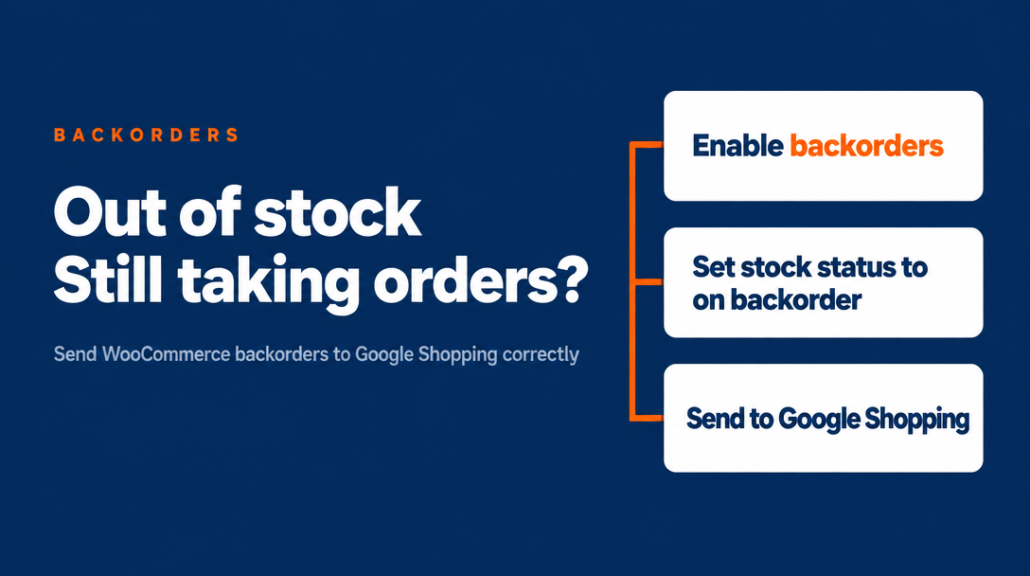
Your best seller sells out on Black Friday, and you decide to keep taking orders. Setting WooCommerce backorders is easy, but getting woocommerce backorder google shopping right takes one more step: your feed has to say the same thing as your product page. Otherwise the page says you are taking orders while the feed still says the item is in stock, or says backorder with no date. Google may disapprove the product until the data matches.
This guide explains how the four availability values differ in Google’s terms, what WooCommerce’s stock settings show to shoppers, and what Google needs for a backorder: an availability date in the feed and an expected shipping date on the page.
Four availability values, in Google’s terms
Google’s availability attribute tells Google whether a product can be bought now, later, or not at all. For backorders, the value you pick matters, so it helps to know what each one means:
- in_stock: the product is available to buy now.
- out_of_stock: “You’re not accepting orders for this product, or the product isn’t available for purchase.” Use this when you are temporarily not accepting orders.
- backorder: “The product isn’t available at the moment, but you’re accepting orders and it will be shipped when it’s available again. You’re required to provide the availability date [availability_date] attribute to indicate the day when it will be shipped. The availability date should be visible on the landing page.”
- preorder: only for new products that haven’t been released yet. Google’s documentation says: “Existing products that are out of stock and will be back in stock at a later date that you’re accepting orders for should use backorder.”
So a product you sold out and are still selling should be marked backorder, not preorder, unless it is a genuinely new release.
What WooCommerce shows when you allow backorders
WooCommerce handles backorders in two ways, depending on whether you manage stock quantities.
Without stock management, the stock status can be “In Stock”, “Out of stock” or “On back order.” With “On back order,” customers can buy the product, and a notice on the single product page says it is on back order.
With stock management, the “Allow back orders?” setting has three options:
- Do not allow: customers cannot order once stock reaches zero.
- Allow, but notify customer: a notice appears on the product page, cart, checkout, order and emails.
- Allow: backorders are accepted, and customers see no difference from an in-stock item.
Stock settings can be set per variation, so a size or color can be on backorder while the rest of the product stays in stock. Keep that in mind when you check variants later.
Here is the gap that causes most problems. WooCommerce’s stock settings show a back order notice, but they do not include an expected shipping date field. Google requires the shipping date on the page for backorders, so you need to show that date on the product page yourself, for example in the product description or a short note near the add-to-cart button.
Why the feed and the product page must match
Google checks that availability is consistent across the landing page, structured data (if available), checkout page and your data source. In Google’s words: “A mismatch in one of these will trigger a product disapproval.”
Google also states this specific case: if a product is out of stock on your landing page or during checkout but says in_stock in your product data, Google disapproves the product. A backordered item that still reads in_stock in the feed is exactly this kind of mismatch.
Variants follow the same rule. A variant’s availability in the data source should match the same variant on its landing page. If size 8 is on backorder on the product page, the size 8 entry in the feed should not say in stock.
What Google needs for a backorder
For a backorder, three things need to be in place:
- An availability date in the feed. The availability_date attribute tells Google the day the product will be shipped.
- The same date on the landing page. Google’s documentation says the availability date should be visible on the landing page.
- An expected shipping date on the page. Google’s rule for preorder and backorder items is that “the page must display the expected shipping date.”
Some format details for availability_date:
- It can be up to 1 year in the future.
- Use ISO 8601 format with date, time and time zone. Google’s example is 2016-12-25T13:00-0800.
- If you don’t add a time and time zone, the default is 12 AM, midnight, UTC.
- Don’t use date ranges.
- If you can’t give an exact date, use an estimated date on the page (for example “May 2023”) and update it once the date is confirmed.
Google does not require a specific wording for the date on the page. Choose a clear sentence, such as the date the order will ship, and use the same date in the feed.
Google also mentions automatic item updates as a way to help avoid availability mismatches. Keeping the feed tied to your store data, rather than editing it by hand, lowers the chance that the page and the feed drift apart during a sale.
How to get the right values into your feed
The feed needs to carry the right availability and availability_date for each backordered product. Product Feed Manager for WooCommerce maps any WooCommerce field, including custom fields and variation data, to a feed attribute. That means availability and availability_date can come from your WooCommerce data, such as a custom field where you store the expected date, and the feed updates on a schedule.
A simple setup looks like this:
- Add a custom field to backordered products with the expected shipping date.
- Map the availability attribute to the stock status.
- Map availability_date to the custom field, and keep the date format consistent with the ISO 8601 example above.
- Show the same date on the product page.
Your feed mapping decides what Google sees, so the plugin only passes along what you have set up. Keep the page, the stock setting and the date in sync whenever you change one of them.
A practical check before you go live
These checks are our recommendation, not Google rules:
- Open one backordered product in your feed file or feed preview and look at its availability and availability_date values.
- Open the same product’s landing page and confirm the shipping date is visible.
- Add the product to the cart and reach checkout to confirm the availability message matches.
- Repeat for one variant, such as a size or color that is on backorder.
If any of these four places disagrees, fix that before the next feed update. For more on keeping feed data current, see WooCommerce Feed Not Updating? Why ‘Ready (Auto)’ Can Still Be Lying to You. If you still update your feed by hand during busy periods, Are Manual Feed Updates Sabotaging Your Google Shopping Ad Performance? explains where that approach can go wrong.
FAQ
Can I run a backorder on Google Shopping if the product is not new?
Yes. Google’s documentation says existing products that will be back in stock at a later date, and that you are accepting orders for, should use backorder. Preorder is only for products that haven’t been released yet.
Does WooCommerce add the expected shipping date for me?
No. WooCommerce’s stock settings show a back order notice, but there is no expected shipping date field. You need to show that date on the product page yourself, and put the same date in the feed as availability_date.
What happens if my feed says in_stock but the page says backorder?
Google’s documentation says that when a product is out of stock on the landing page or during checkout but in_stock in your product data, Google disapproves the product. Make the feed, the product page and checkout show the same availability.
Ready to set this up without editing your feed by hand? Try Product Feed Manager for WooCommerce.