
Black Friday Badges on Your Product Images? Why Google Shopping Disapproves Them and How to Send a Clean Image
It is the week before Black Friday. You add a “-30%” sticker to the main product photos in WooCommerce, and the shop looks great. A day later, Merchant Center shows image disapprovals, and some products may stop showing in Shopping ads right before your busiest days. If you see a google shopping image disapproved notice this time of year, the sticker on the photo may be the cause.
The good news is that you do not have to choose between a sale look in your store and a working feed. You need to understand what Google reads, and then send it a clean image.
What Google counts as a promotional overlay
Google’s Merchant Center Help is direct about this: “Your product image must offer an unobstructed, clean view of the item for sale. Adding post-production text, marketing callouts, or graphics distracts shoppers from your product and will cause an image disapproval.”
Google lists these as things to avoid on product images:
- Calls to action, such as “Buy” or “Shop now”
- Price and shipping details, such as mentions of price, discounts, or offers like “Free shipping”
- Service claims, such as “Includes 2-year warranty”
- Promotional adjectives, such as “Best” or “Cheap”
- Condition or compatibility text, such as “New” or “2-piece set”
- Barcodes or QR codes overlaid on the photo
- Watermarks and graphic stamps
- Logos or store names added in post-production, which are allowed only if they are a physical part of the product
Google also does not allow placeholder images such as “Coming soon” or “No image available,” a store logo used instead of a product photo, or images with a border.
A “-30%” sticker or a “Black Friday deal” label falls into the discount and promotional categories above. A practical check: if there is text or a graphic on the photo that is not printed on the product itself, treat it as a risk for the feed.
Why the badge can look fine on your site and still fail
Your shop page is built for shoppers. Google reads the image file you send in your feed, which is a different thing. A badge that looks like a small corner tag to a visitor is still part of the picture Google receives.
Do not assume a sale badge added by your theme is safe either. As a practical check, open the URL in your feed’s image_link and look at the actual file Google receives. Do this for a few products, including ones that have variations or a custom image field.
What automatic image improvements can and cannot fix
Merchant Center has an option that can help. Automatic image improvements are turned off by default. You can turn them on in Merchant Center under Products, Automations tab. When it is on, Merchant Center “will try to fix these images by removing any text, watermarks, overlays, or logos detected in the image.”
Google also says this “may not resolve all issues.” If the system cannot fix the image without lowering its quality, the original image remains. Google gives these examples:
- Complex multi-panel collages
- Heavy text overlapping the main product features
- Strong or dense watermarks
In those cases, you need to upload a new image. Treat the automatic option as a possible help, not a guaranteed fix. Check the result for each affected product.
How to keep the badge in your shop and send a clean image to Google
The goal is two versions of the same product photo: one with the sale look for your store design, and one clean file for the feed.
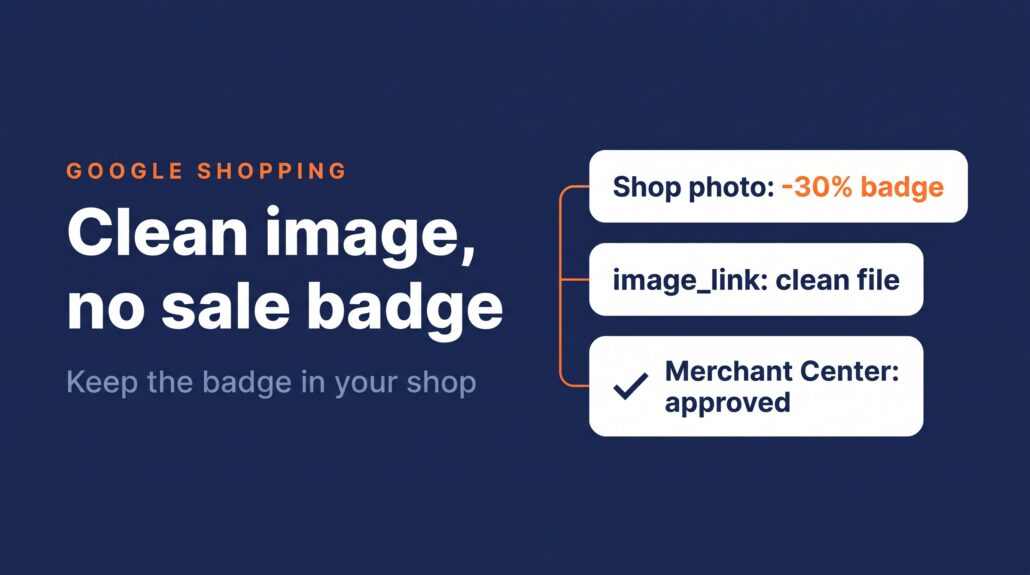
- Keep the sale look on your site if you want it. What matters for Google is the file in image_link, so that file needs to be clean.
- Upload a clean product photo. Use the original photo with no sticker, no border, and no text added to it.
- Store the clean image URL in its own WooCommerce field. This can be a custom field that holds the clean image. Product Feed Manager for WooCommerce maps any WooCommerce field, including custom fields and variation data, to a feed attribute, so image_link can come from a field that holds the clean image, and the feed updates on a schedule.
- Use the right image attributes. Use image_link for the main image and additional_image_link for other angles.
- Use stable image URLs. Do not use URLs with parameters that change on every feed submission.
- Check the image size. From January 31, 2027, images must be at least 500 x 500 pixels. Google recommends 1500 x 1500 pixels or more. Upload larger originals now so you do not have to redo them later.
- Confirm the images can be crawled. Your robots.txt should allow Googlebot and Googlebot-image. Google says it may take 24 to 48 hours after updating robots.txt for changes to take effect, so make this change before your peak week, not during it.
If your feed also shows other warnings, the problem may be bigger than images. Our guide to Symptoms of a Sick Product Feed: 5 Warning Signs Your Products Are Invisible on Google lists the signs to look for.
How to check that the fix worked
After you update an image, go to the “Needs attention” page in Merchant Center and confirm the image issue is no longer listed there. Do not assume the change is done just because you uploaded the file.
We recommend a short check before your sale week begins:
- Open the image_link URL for several products and confirm you see the clean file, with no sticker or border.
- Check the “Needs attention” page for any image issues that remain.
- Look at products with variations, since they often use a different image field.
If a product still shows an issue after you upload a clean image, review its other fields too. The How to Fix Missing Attributes & Errors in Google Shopping (Easy Guide) walkthrough covers the most common field errors.
FAQ
Will a “-30%” sticker on my product photo cause a google shopping image disapproved notice?
It may. Google’s rules list price, discount, and promotional text on product images as things to avoid, and an image with that text may be disapproved. Check the file Google receives in your image_link.
Does turning on automatic image improvements fix Black Friday badges?
It can remove text, watermarks, overlays, or logos that Merchant Center detects, but Google says it may not resolve all issues. If the image cannot be fixed, upload a new image without the badge.
Do I have to remove the sale look from my store?
No. You can keep the design you want on your site. Send Google a clean file through image_link, and check that file directly.
Ready to keep your product feed clean through Black Friday? Try Product Feed Manager for WooCommerce.