Why is My WooCommerce Product Not Appearing on Google Shopping? A Beginner’s Guide to Feed Requirements
You’ve done everything right. You’ve built a beautiful WooCommerce store, curated your products, and taken stunning photos. You signed up for Google Merchant Center, eager to see your items appear in front of millions of shoppers. You wait a day. Then another. But your products are nowhere to be found on Google Shopping.
This silent rejection is one of the most common and frustrating experiences for new WooCommerce merchants. It feels like you’ve been ghosted by Google.
The good news? You’re not alone, and the problem is almost always solvable. The issue usually isn’t with your products themselves, but with how you’re describing them to Google. You need to speak Google’s language, and that language is spoken through a product feed.
Think of it this way: Google Merchant Center (GMC) is like a meticulous hiring manager, and your product feed is your product’s resume. If the resume is incomplete, uses the wrong format, or contains inconsistent information, it gets tossed aside without a second glance. This guide will help you write the perfect resume for your products.
The Foundation: What Is a Google Shopping Feed?
A Google Shopping feed is simply a file, like a spreadsheet, that contains all the critical information about your products, organized in a way that Google’s systems can understand. WooCommerce stores your product data in its own database, but Google needs that data translated into its specific format.
This file lists out attributes for each item you sell. When a user searches for “red running shoes size 10,” Google scans the feeds from countless merchants to find products that perfectly match that description. If your feed is missing the color, product category, or size, you simply won’t show up.
This is where the problems begin. A small discrepancy between the data on your website and the data in your feed can lead to disapproval.
Deconstructing the Feed: The Core Requirements That Trip Up Beginners
Getting your products approved isn’t about having a perfect website; it’s about providing perfect data. Here are the most common areas where new merchants stumble.
1. Product Identifiers: The “Big Three” (GTIN, MPN, and Brand)
This is, without a doubt, the number one source of confusion. Unique Product Identifiers (UPIs) are codes that help Google understand exactly what product you’re selling.
- GTIN (Global Trade Item Number): This is the most common UPI. It’s the barcode number on a product’s packaging (UPC in North America, EAN in Europe, JAN in Japan). If you sell new, branded products from other manufacturers, you almost certainly need a GTIN.
- MPN (Manufacturer Part Number): An alphanumeric code created by the manufacturer to identify a specific part among other parts from the same manufacturer. Essential for hardware, car parts, and electronics.
- Brand: The brand name of the product.
The “Do I Need an Identifier?” Dilemma: The biggest myth is that every product needs a GTIN. This isn’t true.
- Selling a new, branded product (e.g., a Nike shoe)? You must provide the
brandandgtin. - Selling a product without a GTIN (e.g., replacement parts)? You should provide the
brandandmpn. - Selling a custom, handmade, or vintage item (e.g., a one-of-a-kind piece of jewelry)? You don’t have a GTIN or MPN. In this case, you must tell Google the identifier does not exist by setting the
identifier_existsattribute tono. If you fail to do this, Google will disapprove the item for missing a GTIN.
Aha Moment: Failing to provide a required GTIN will get your product disapproved. But falsely claiming you don’t have one when the product clearly does (like a new iPhone) will also lead to disapproval. Accuracy is everything.
2. High-Quality, Valid Images (image_link)
Google has strict rules about images. An image-related error is an easy one to make.
- No Placeholders: The image must show the actual product.
- Clean Background: The main image should ideally be on a solid white or transparent background.
- No Text or Watermarks: Promotional text, logos, or watermarks are not allowed on the main image.
- Stable URL: The image URL must be a permanent, crawlable link. If your URL changes or is blocked, Google can’t see the image, leading to disapproval. This often happens with poorly configured image hosting or CDN settings.
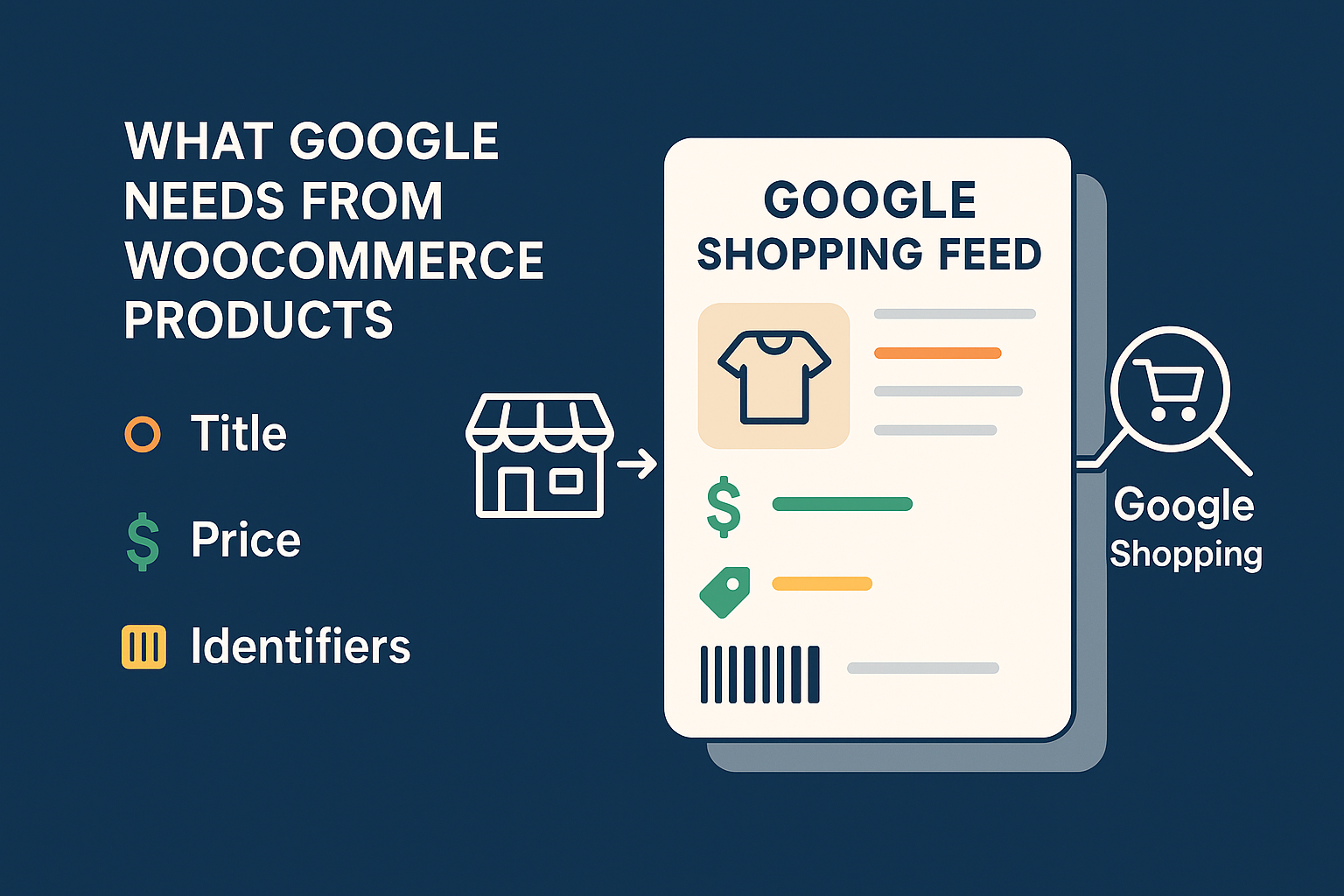 (Image: A clean, high-quality product image like this is essential for Google Shopping approval.)
3. Price and Availability Mismatches (price, availability)
What a customer sees on your product page must exactly match what’s in your feed.
A recent study showed that price mismatches are among the top 5 most common reasons for Google Merchant Center account suspensions. Even a tiny difference can cause disapproval. This often happens when:
- You run a sale on your WooCommerce store, but haven’t updated your feed.
- Your WooCommerce caching plugin is showing an old price to Google’s crawler.
- A product goes out of stock, but your feed still says
in stock.
Google constantly cross-references your feed with your live website. If it detects a mismatch, it will disapprove the item to avoid showing shoppers incorrect information.
Common Disapproval Reasons & How to Find Them
When Google disapproves of a product, it doesn’t just block it silently. It tells you why in the Diagnostics tab of your Google Merchant Center account. This is your command center for troubleshooting.
Here are the most common errors you’ll see and what they mean:
| Error Message in GMC | What It Really Means | How to Fix It in WooCommerce (Manually) |
|---|---|---|
Missing a value [gtin] |
You’re selling a branded product but didn’t provide its barcode number (GTIN). | Find the GTIN on the product’s packaging. Go to the WooCommerce Product Data section for that item and enter the GTIN into the designated field (you may need a plugin to add this field). |
Invalid value for [availability] |
The availability in your feed (in stock) doesn’t match your live site (out of stock). |
Check your product’s stock status in WooCommerce. Ensure that when an item sells out, your feed is updated immediately to reflect out of stock. This is often a timing issue with manual updates. |
Promotional overlay on image |
Your product image has a “SALE” banner, your logo, or other text on it. | Re-upload a clean version of the image without any text overlays. Your main image must be pristine. Use the “Additional image link” attribute for lifestyle shots. |
Mismatched value (page crawl) [price] |
The price in your feed is different from the price on your product page. This can be caused by sales, taxes, or caching. | Ensure the base price in WooCommerce matches your feed. If you have complex tax or shipping rules, make sure they are configured identically in both WooCommerce and Google Merchant Center to avoid discrepancies. |
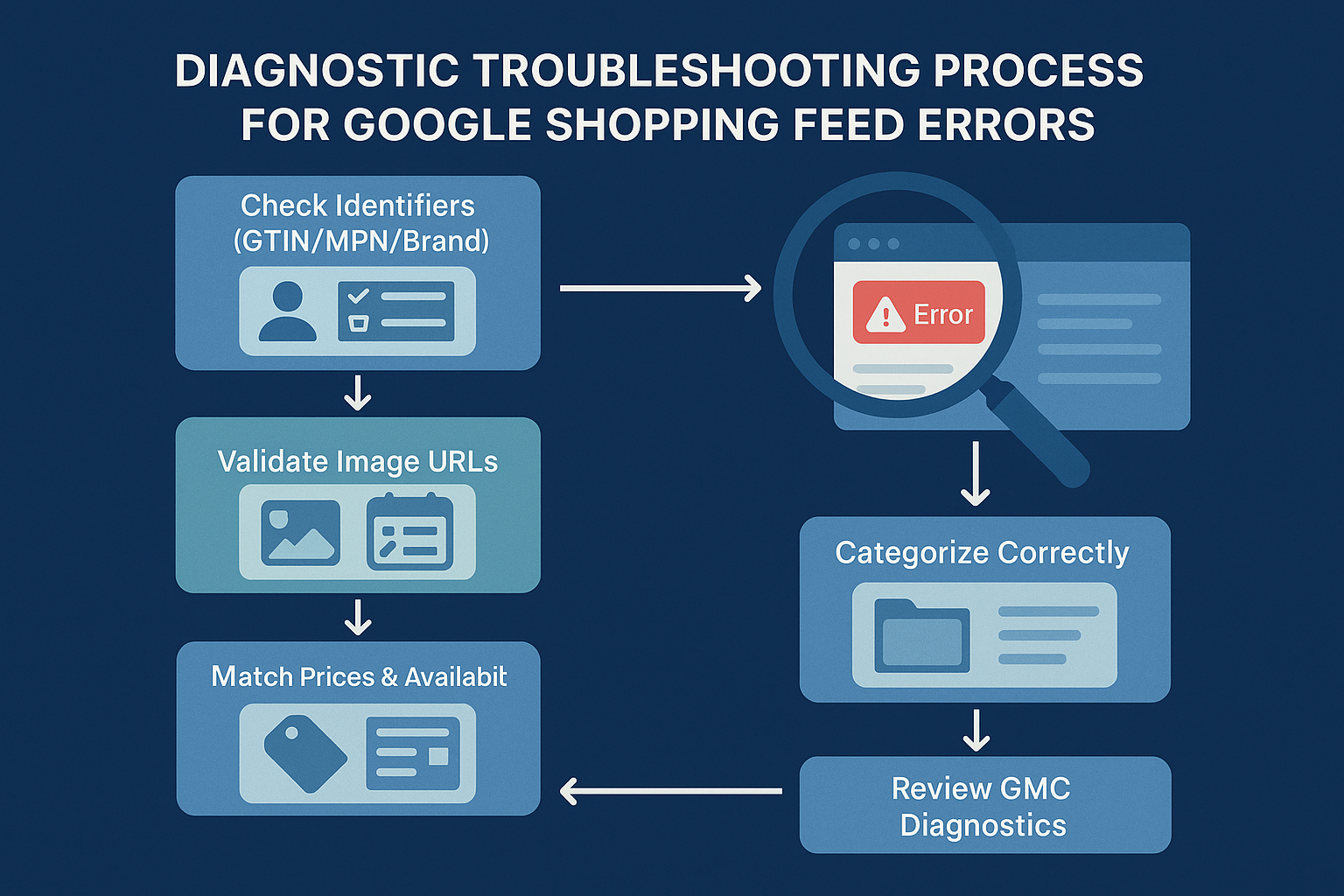 (Image: Your WooCommerce product editor is where you must input accurate identifier data like GTIN or MPN.)
The Slippery Slope of Manual Management
Can you fix these issues manually? Absolutely. You can go through your WooCommerce products one by one, find the GTINs, update the stock, and create a spreadsheet to upload to Google.
But what happens next week?
- A supplier changes an MPN.
- You run a flash sale for 48 hours.
- Three products are out of stock.
- Google updates its
google_product_categoryrequirements.
Suddenly, you’re back in the diagnostics tab, pulling your hair out. Manually managing a feed for more than a handful of products is not just time-consuming, it’s a recipe for continuous errors and lost sales. This is where successful merchants make a crucial pivot from manual fixes to automated consistency.
Effective product feed management isn’t a one-time task; it’s an ongoing process. You need a system that automatically pulls the latest, most accurate data from your store and delivers it to Google in the correct format, on a schedule you set.
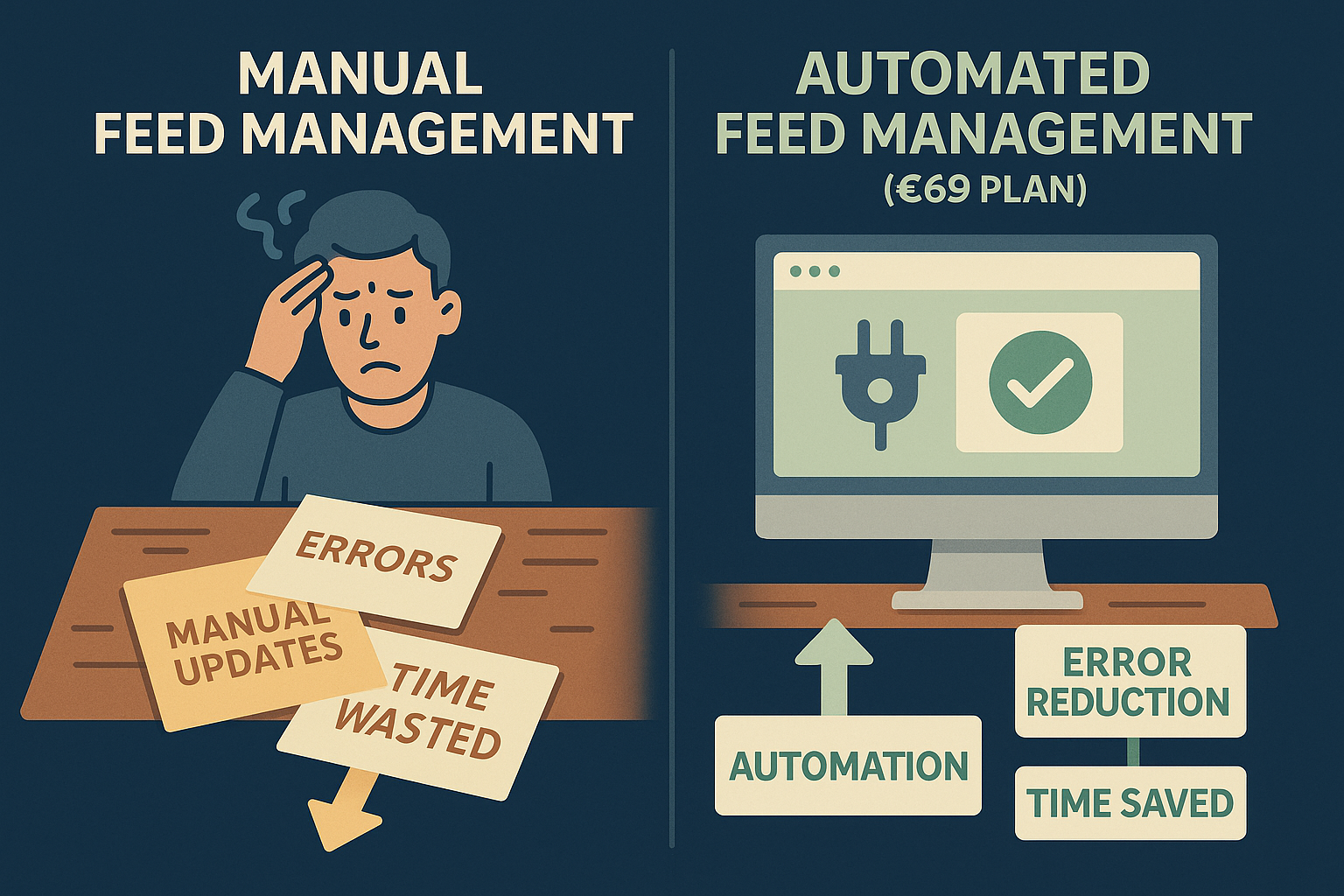 (Image: Automating your feed updates ensures Google always has your latest price, stock, and product data.)
Frequently Asked Questions (FAQ)
1. How long does it take for my products to appear on Google Shopping? After you submit a new feed, it can take Google up to 72 hours to review your products. If they are approved, they can start appearing in free listings and paid ads shortly after. If they are disapproved, they won’t show up until you fix the errors and Google re-reviews them.
2. What’s the difference between a “Warning” and an “Error” in GMC Diagnostics? An Error (red) means the product is disapproved and will not show up anywhere. This is critical to fix. A Warning (yellow) means the product is still eligible to show, but its data is suboptimal or missing recommended attributes. Fixing warnings can improve your ad performance, but it isn’t as urgent as fixing errors.
3. Do I really need to fill out the “Google Product Category”? While your WooCommerce product category helps organize your store, there google_product_category is Google’s own taxonomy. It is highly recommended. Providing this helps Google understand your product better, leading to it being shown for more relevant searches. For some categories (like Apparel & Accessories), it’s mandatory.
4. My products are variable (e.g., a t-shirt in different sizes and colors). How do I handle that? Each variant must be submitted as a separate item in your feed. You can’t just list the parent “t-shirt.” The feed needs a line for the “red, size small” t-shirt and another for the “blue, size large” t-shirt, each with its own unique image, price, and availability. This is a major complexity where manual feeds often fail.
Your Path Forward: From Frustration to Visibility
Getting your products listed on Google Shopping is a game of details. While the rules can seem intimidating, they are logical. Google’s goal is to provide a trustworthy and consistent experience for its users, and that starts with accurate data from merchants like you.
By understanding the key requirements around product identifiers, data accuracy, and image quality, you’ve already overcome the biggest hurdles. The next step is to decide how you will ensure that accuracy day in and day out.
For a deeper dive into optimizing your feed for success, explore our complete guide on Google product feed management. By shifting your focus from reactive fixes to proactive automation, you can finally stop worrying about why your products aren’t showing up and start focusing on the sales that roll in when they do.

Leave a Reply
Want to join the discussion?Feel free to contribute!